
The UwView series — search with UwView, compare with UwDiff
Open and search huge files with UwView; compare two files or two folders with UwDiff. Both run on Windows, macOS and Linux. → UwDiff user manual
User guideUwView Pro
User guide
UwView User Guide (free edition, GUI)
Covers: the window (GUI) of UwView v1.9.0 “Full Spectrum” (free edition, desktop).
UwView is an app you can use like grep and vi together: the CLI (the uvf command) searches files for text, and the GUI opens huge files of several GB to tens of GB instantly so you can read and search them. Since v1.8.1.9 you can also search inside the GUI with the same syntax as the CLI (§8). This page covers the GUI.
New in v1.9.0 “Full Spectrum”: open and search Word, Excel and PDF files (§13); a Settings window for the theme, fonts and key bindings (§17); a bookmark switch in the result list (§6); AND / NOT / OR templates in Predefined ★ (§5); file actions from the file name in the status bar, and where the file list opens files (§1, §9); a notice bar and tail-follow when the file changes outside the app (§11); and brace patterns {a,b} in file patterns (§8).
For the command (uvf), see the uvf command manual; for the UwView Pro window, see the UwView Pro User Guide. Download and PATH setup are in Help.
▶ Watch the videos: YouTube playlist “UwView|English” (how to use v1.7.3.6 “Wide Field” in 8 topics, plus an overview · Japanese · Channel @uwviewapp)
- Contents
- 1. The window
- 2. Opening files
- 3. Handling large files (page mode and line mode)
- 4. Moving around (scrolling, jumping, minimap)
- 5. Searching
- 6. Result list (filter results)
- 7. Multi-file results (from uvf -open)
- 8. Command Line (search from the window with the same syntax as uvf)
- 9. File list and tabs
- 10. Color highlighter
- 11. Bookmarks, follow tail, favorites, and files changed outside
- 12. Selection, copy, save
- 13. Compressed files, Word, Excel and PDF
- 14. Encoding and language
- 15. Using uvf from a console (command line setup)
- 16. Keyboard and mouse reference
- 17. The Settings window (keys, display) and saved settings
- 18. Limits and cautions
- 19. Differences in the browser build
- Related
Contents
- 1. The window
- 2. Opening files
- 3. Handling large files (page mode and line mode)
- 4. Moving around (scrolling, jumping, minimap)
- 5. Searching
- 6. Result list (filter results)
- 7. Multi-file results (from uvf -open)
- 8. Command Line (search from the window with the same syntax as uvf)
- 9. File list and tabs
- 10. Color highlighter
- 11. Bookmarks, follow tail, favorites, and files changed outside
- 12. Selection, copy, save
- 13. Compressed files, Word, Excel and PDF
- 14. Encoding and language
- 15. Using uvf from a console (command line setup)
- 16. Keyboard and mouse reference
- 17. The Settings window (keys, display) and saved settings
- 18. Limits and cautions
- 19. Differences in the browser build
1. The window
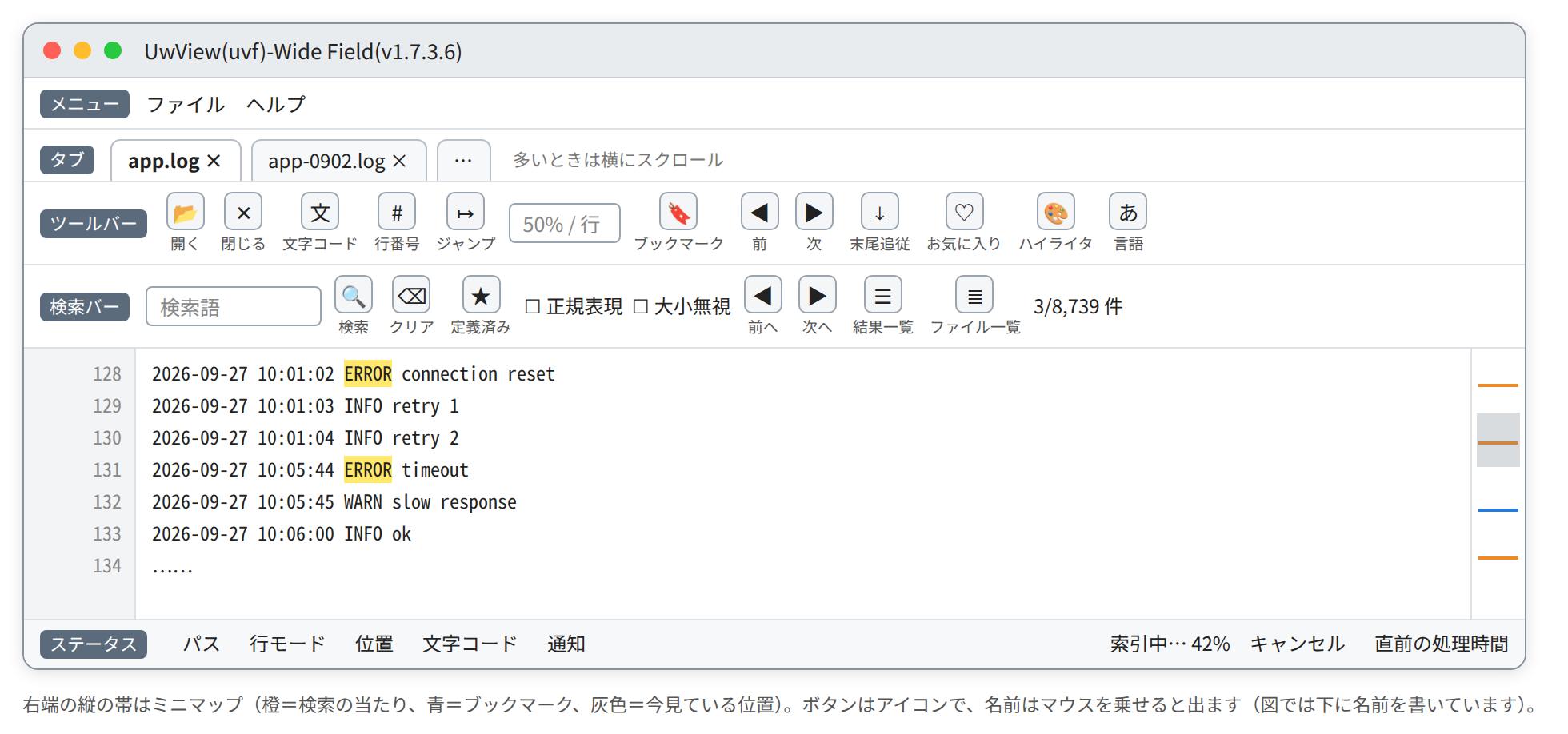
| Part | What it shows |
|---|---|
| Menu | File: Open… / Close (current tab) / Command Line… (§8) / Close all / Export bookmarks… (§11). Tools: Settings… (§17; on a Mac, “Settings…” in the app menu; from v1.9.0). Help: guide, news and contact (web), GitHub, Command line setup…, About (on a Mac, “About UwView” in the app menu) |
| Window title | Shows the release name (Full Spectrum) and version, in the form UwView(uvf)-Full Spectrum(v1.9.0). “About UwView” and uvf --version show only the official name |
| Tabs | One tab per file, with the file name, indexing %, and ×. When there are many, they stay on one row and scroll sideways (the wheel scrolls them) |
| Toolbar | Buttons are icons only. Hover to see a button’s name (since 1.7.3, the same in the other windows. Yes / No, Open / Close, Save, Cancel and the like keep their text labels). The terminal-shaped button left of the language box is Command Line (§8) |
| Status bar | File name (click it for the full path with Copy, Folder, Terminal and App; from v1.9.0, see “File actions” below) / “line mode” or “page mode” / position (total lines and top line; % in page mode) / encoding / short notices (4 seconds). On the right, indexing progress and “Cancel”; at the far right, the time the last operation took (hover for the last 10) |
| Notice bar | A yellow notice above the text when another program truncates or deletes the open file, and so on (§11; from v1.9.0) |
| Minimap | A miniature of the whole file. Orange = search hits, blue = bookmarks, gray band = where you are |
| Start screen | Shown when no file is open: “Open file…”, recent files and favorites (double-click to open) |
File actions (from v1.9.0)
Click the file name in the status bar (left or right click), or right-click a row in the file list, for a small window.
| Part | What it does |
|---|---|
| Full path | Where the file is. You can select and copy it |
| Copy | Copies the full path to the clipboard |
| Folder | Opens the folder in Finder, Explorer or the like, with the file selected |
| Terminal | Opens a terminal in the file’s folder (Terminal on a Mac; Windows Terminal on Windows, or Command Prompt if it is not installed) |
| App | Opens the file in the app for its extension (a PDF app for .pdf, Word for .docx and so on) |
- The result appears at the very bottom of the window.
- App is disabled for a file that cannot be found and the like (hover to see why).
2. Opening files
| Method | Details |
|---|---|
| Menu “File → Open…” / the toolbar’s open button | Choose files (multi-select works; any file type can be chosen) |
| Drag & drop | Drop anywhere on the window to open (several files at once) |
| Start screen | Double-click a recent file (up to 15) or a favorite |
| From the OS | Finder’s “Open With”, or drop onto the app icon. If the app is already running, the file opens in a new tab |
| From the command line | uvf -open app.log ERROR (opens and searches). See §7 |
| From the window’s Command Line | Search files with the same syntax as uvf (several files at once). See §8 |
| Word, Excel, PDF | Extracts the text and opens it (from v1.9.0; see “Word, Excel and PDF” in §13) |
Pick up where you left off: on launch it asks “Restore the previous files (N)?”. “Restore” takes you back to where you were (the area around that position appears without waiting for the index). With “Don’t restore”, the record is kept and it asks again next time.
3. Handling large files (page mode and line mode)
UwView works in two stages so that you can read a file the moment it opens.
| Mode | When | What you can do |
|---|---|---|
| Page mode | Right after opening (while the line index is built) | Scroll the whole file, go to the end, jump by %. No line numbers yet |
| Line mode | Once the index is ready | Line numbers, jump to a line, line selection, quick coloring with the highlighter |
- Indexing progress shows as a % on the tab and in the status bar. If you stop it with “Cancel”, you can keep reading in page mode.
- If you search before the index is ready, the search and the indexing run in the same single read (the file is not read twice).
- Each line is displayed up to its first 8,192 characters (the rest shows as “… (omitted)”).
4. Moving around (scrolling, jumping, minimap)
| Action | Effect |
|---|---|
| ↑ ↓ / wheel | One line / three lines |
| PageUp / PageDown | One screen |
| Ctrl (Cmd on Mac)+Home / End | Start / end |
| ← → / Shift+wheel / sideways swipe | Scroll sideways. Home goes to the left edge |
| Click or drag the minimap | Go to that relative position |
| Type in the jump box and press Enter (or the go button) | 50% → halfway / 12345 → line 12345 (line mode). A bare number in page mode is a byte offset |
- The jump box runs with Enter or the go button (since 1.7.3.6). Ctrl (Cmd)+L moves to the jump box.
- The line you jump to is centered and highlighted in light blue.
5. Searching
- Type a term in the search box and press Enter (or 🔍). Ctrl (Cmd)+F moves to the search box.
- A progress window appears (ratio, hit count, “Cancel”). When it finishes, press “Close”. If there are hits, the result list opens automatically (§6).
- Matching terms are highlighted in yellow, with orange lines on the minimap.
| Control | Meaning |
|---|---|
| Regex | Treat the term as a regular expression. Leave it off for the fast literal search (off by default) |
| Ignore case | Ignore upper/lower case for Latin letters |
| ◀ Prev / Next ▶ | Move to the previous / next hit (from the line highlighted on screen, or else from the top of the screen). Keys: Shift+F3 / F3 (on a Mac, also Cmd+Shift+G / Cmd+G) |
| Count | “N hits” → after moving, “3/8,739 hits”. When stopped at the cap, “(stopped at cap)” |
| Clear | Clears the search (the same as emptying the term and pressing Enter) |
| Search history | The search box suggests your last 50 searches |
| Predefined ★ | Saves the current search (term, Regex, Ignore case) with ★. Pick it from the list to run it at once. The × at the right of a row deletes it (from v1.9.0) |
- Search covers only the one file in the current tab.
- Regex uses .NET regular expressions (syntax in §7 of the uvf command manual). A malformed pattern shows “The regular expression is invalid”.
- There is no cap on the number of hits (unlimited).
AND / NOT / OR templates (from v1.9.0)
The Predefined ★ list starts with three templates that write AND, NOT and OR as a single regular expression (added on the first launch; a template you delete does not come back).
| Template | Expression | Matching lines |
|---|---|---|
| AND (contains both) | ^(?=.*word1)(?=.*word2) |
Lines containing both word1 and word2 (in any order) |
| NOT (does not contain) | ^(?!.*excluded).*word |
Lines containing word but not excluded |
| OR (either) | word1|word2 |
Lines containing either |
- Picking a template puts the expression in the search box and turns Regex on. Unlike other predefined searches, picking it does not search yet.
- The first word (
word1/excluded) is selected, so typing replaces it. -
Replace the remaining words too, then press Enter to search.
-
The words go inside a regular expression, so put
\before symbols such as.([(for example\.). - In the Japanese UI the templates use Japanese placeholder words.
6. Result list (filter results)
The “Result list” button on the search bar lists only the matching lines in a separate window.
| Control | Meaning |
|---|---|
| Count | C/Total |
| Hits + bookmarks / Bookmarks only / Hits only | What the list shows (from v1.9.0; the default is Hits + bookmarks; your choice is remembered) |
| ± N lines of context | Also show lines around each hit (the free edition goes up to ±1). Context lines are dimmed, separated by “⋯” |
| Include line numbers | Add line numbers when saving (on by default) |
| Save… | Write what is shown to a file (name-filter.txt, UTF-8) |
- Double-click / Enter jumps to that line in the main view (centered, light blue).
- Selection: click, Ctrl (Cmd)+click to add, Shift+click for a range, or drag. Ctrl (Cmd)+A selects all, Ctrl (Cmd)+C copies. Right-click for “Copy” and “Save to file…”.
- ±N and the position are kept after you close the window.
Bookmarks in the list (from v1.9.0)
- Hits and bookmarks (§11) are merged in file-line order. Bookmarked lines get a blue bar left of the line number.
- A line that is both a hit and a bookmark appears once, with both marks. Even with Hits only, bookmarked lines keep the blue bar.
- When nothing has been searched, the list is the same as Bookmarks only (you can use it as a bookmark list).
- With ± N context, bookmarked lines get the same context.
- Select a bookmarked line in the list and press Delete (or Backspace) to remove that bookmark. The marks in the text and on the minimap go too.
- Save… writes the lines visible under the current switch.
- With the vi/less-style keys (§17),
vcycles through the three choices.
7. Multi-file results (from uvf -open)
You can search several files from the command line and read the results in the window.
uvf -open '*.log' ERROR
uvf 'logs/**/*.log' timeout -i -open
Right after opening
- File number 1 appears in the main tab.
- The results window opens (without a search term, the file list opens instead).
- The window does not search again (it uses the command’s results as they are).
The results window
1:128     2026-09-27 10:01:02 ERROR connection reset
1:512     2026-09-27 10:05:44 ERROR timeout
3:7       2026-09-27 11:00:00 ERROR disk full
- The line column reads
file-number:line. The file list (§9) shows which number is which file. Selecting a row shows “number: real path” at the bottom of the window. - The title shows the file pattern, search term, N files and M hits.
Double-click (or Enter) to see that line in the original file
| Situation | What happens |
|---|---|
| The file is shown in the main tab | Just moves to that line |
| The file is open in an extra tab | Switches to that tab and moves |
| It is not open anywhere | Replaces the main tab’s content with that file and moves |
- Large files take time to open. The status bar shows “Opening… 3:128394”. If you double-click another row while waiting, the later one wins.
- In the opened file, that file’s hits turn yellow and ◀▶ moves between them (C/Total in the main window is the position within that file; C/Total in the results window is the position within all results).
- Compressed files are decompressed next to the original without asking, then opened (an existing decompressed copy is used if it is newer).
- If the file has changed since the search, “Lines may have shifted” appears. If it is gone, “File not found”.
Limits (vs UwView Pro)
| Item | UwView | UwView Pro |
|---|---|---|
| From a result to the original line | Reopens the file (a large file takes a while) | Jumps at once inside the bundled index |
| Search box in the window | Searches only the file in the main tab. Search all files again with the window’s Command Line (§8) or from the command line | Searches the whole bundle |
| Hits handed over | Up to 1,000,000 (first 1,000 characters of each line) | — |
| ± N context | Not shown (up to ±1 when you search a single file in the window) | Up to ±64 |
8. Command Line (search from the window with the same syntax as uvf)
Since 1.8 you can search inside the window with the same syntax as the uvf command. Without opening a terminal, you can search several files and compressed files at once and read the results in the main window.
Opening it
Any of these opens the same dialog.
- The Command Line button on the toolbar (the terminal icon, left of the language box)
- Menu File → Command Line…
- Ctrl+Shift+K (Cmd+Shift+K on a Mac)

- There is one dialog per window. You can keep it open and still use the main window. Opening it again brings it to the front.
- Closing it with Close keeps what you typed.
Parts of the dialog
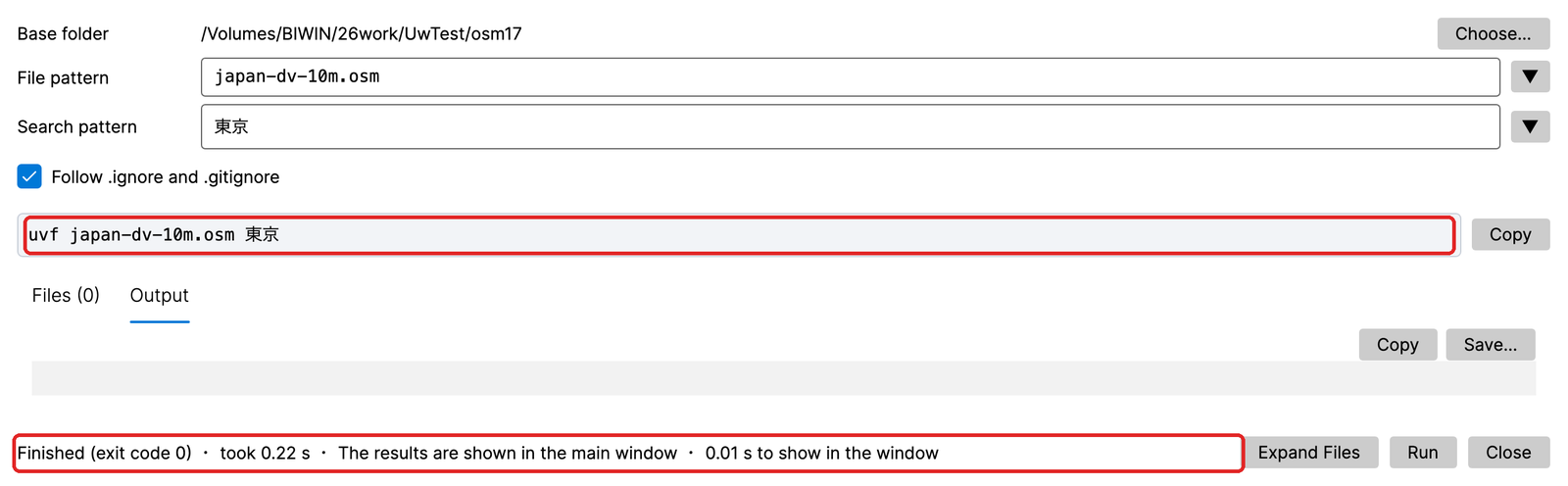
| Part | Meaning |
|---|---|
| Base folder · Choose… | The folder you would type the command in. Relative paths in File pattern are resolved from here |
| File pattern ▼ | Written like the command’s first argument (the file part): app.log, *.log, *.osm,*.gz (comma-separated), logs/** (everything below), *.{txt,log} (braces: txt or log; from v1.9.0), absolute paths. No quotes needed (quotes do no harm) |
| Search pattern ▼ | Written like everything after the first argument (search term and options): ERROR -i, 'K="NAME[^"]*"' -E -i. Quotes and \ are read as a shell reads them. Enter runs it |
| ☑ Follow .ignore and .gitignore | On: the same exclusion rules as ripgrep. Off: the same as --no-ignore |
| Command line · Copy | The uvf … line built from the two fields, updated as you type. Paste it into a terminal in the base folder and you get the same result. Windows also has Copy (PowerShell) (its quoting rules differ) |
| Error line (red) | Mistakes are reported in the same words as the command. Run stays disabled while there is a mistake |
| Files (N) tab | The list from Expand Files (number, file, size). Double-click a row to open it in the main window |
| Output tab | Things that answer in text (--help, --version, --files and so on) and notices from the command (shown above in another color). Copy, Save… |
| Bottom line | Progress while running; the result when done (exit code, time taken) |
| Expand Files / Run / Close | List the files / search / close. While running, Stop stops it |
How the command maps to the fields:
| Command | File pattern | Search pattern |
|---|---|---|
uvf app.log ERROR |
app.log |
ERROR |
uvf japan.osm 'K="NAME[^"]*"' -E -i |
japan.osm |
'K="NAME[^"]*"' -E -i |
uvf '*.osm,*.gz' 東京 |
*.osm,*.gz |
東京 |
uvf 'linux/**' spinlock -i |
linux/** |
spinlock -i |
uvf '**/*.{txt,log}' ERROR |
**/*.{txt,log} |
ERROR |
Brace patterns {a,b} in file patterns (from v1.9.0)
Write {a,b} in a file pattern and it expands to both a and b. The uvf command and the window’s Command Line work the same.
| Pattern | Expands to |
|---|---|
**/*.{txt,log} |
Every .txt and .log in all folders below |
app.log{,.*.gz} |
app.log and app.log.*.gz (the same as app.log,app.log.*.gz) |
logs/2026-{09,10}/*.log |
logs/2026-09/*.log and logs/2026-10/*.log |
- Nesting (
{a,{b,c}}) and empty choices ({,.gz}) are allowed. - One pattern expands to at most 1,000 variants; beyond that it stops (exit code 2).
- Commas and spaces inside braces do not split the pattern.
- An unclosed
{, or{}/{a}without a comma, is taken literally. - If a file whose name contains the braces actually exists, that file is used without expanding.
Searching (Run)
- Does inside the app what typing the command in the base folder would do. The results appear in the main window (the same as the command with
-open; nothing goes to the dialog’s Output). - One file: opens it in a tab (or uses the tab it is already in) and shows the result list (§6).
- Several files: shown as multi-file results (§7). Running again clears the previous result tabs, window and file list first.
- While running, it shows which file out of how many, how much has been read, time left and time elapsed. Stop stops it (“Stopped”).
- When done, the bottom line reads like “Finished (exit code 0) · took N s · The results are shown in the main window · N s to show in the window”. The exit code is the same as the command’s (0 = found, 1 = not found, 2 = error).
- To get the results as text, use Save… (the content is the same as the command’s output).
-openin the search pattern is ignored (“-open is not needed inside the app (ignored)”).- Running without a search term lists the files only (the same as
--files).
Checking before searching (Expand Files)
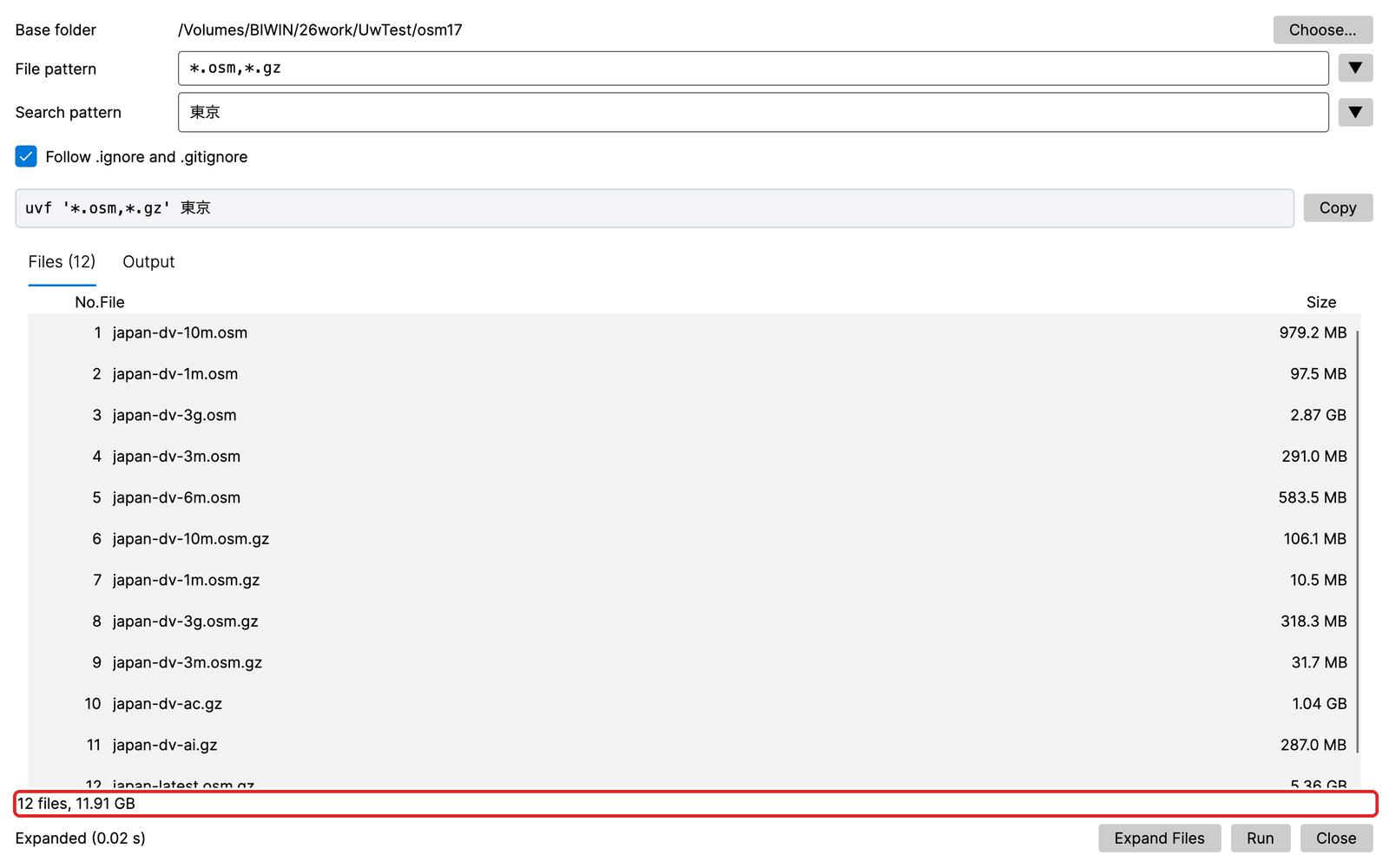
- Expands File pattern and lists the target files (the same expansion as
--files). - Below it: the file count, total size, and how many were excluded by
.gitignoreand the like. Over 1,000 files it says “More than 1,000 files (continuing)”. Files that cannot be read get a ⚠.
When you write a Pro option
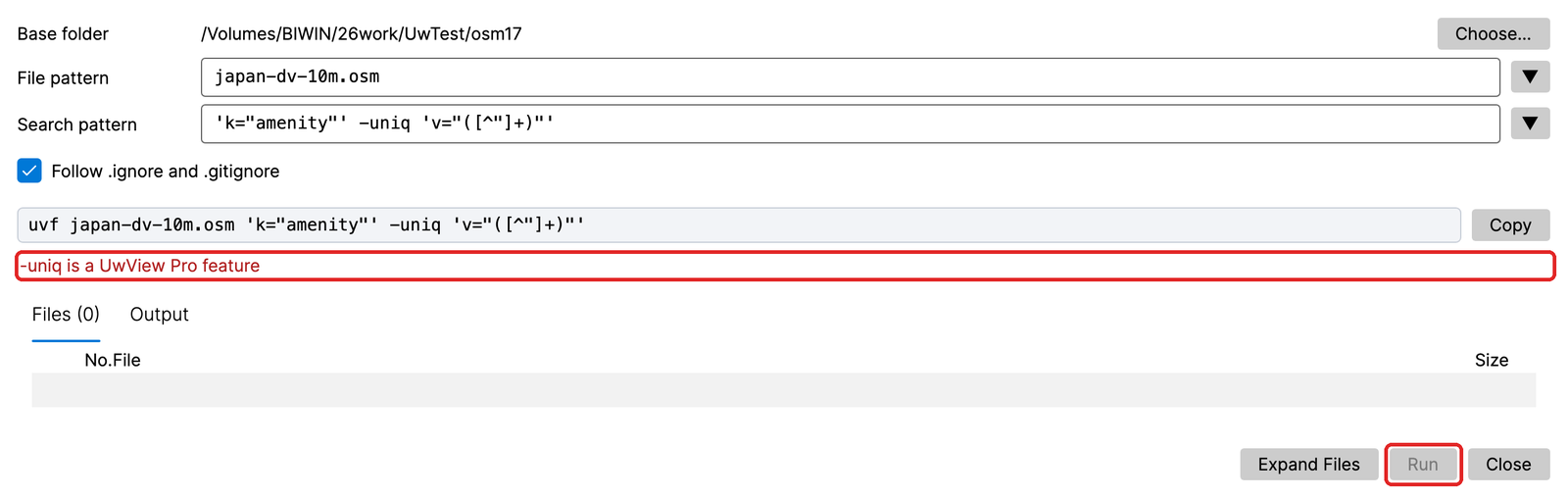
- UwView Pro options such as
-uniq,-seqand-grepare reported as “-uniq is a UwView Pro feature”, and nothing runs. - zip, tar.gz and OSM pbf cannot be searched in the free edition (extract them first).
Base folder and history
- The base folder starts as the first of these:
- When the window was opened from a terminal with
uvf … -open, the folder you typed it in (only the first time in that session) - The base folder you used last
- The folder of the file in the current tab
- Your home folder
- What you ran (base folder, the two fields, the exclusion checkbox) is kept, up to 50 sets. Pick one from ▼ on either field to bring back the whole set. The dialog opens with the last values.
9. File list and tabs
While multi-file results are open, a file list button (a bulleted-list icon) appears on the search bar and in the results window.
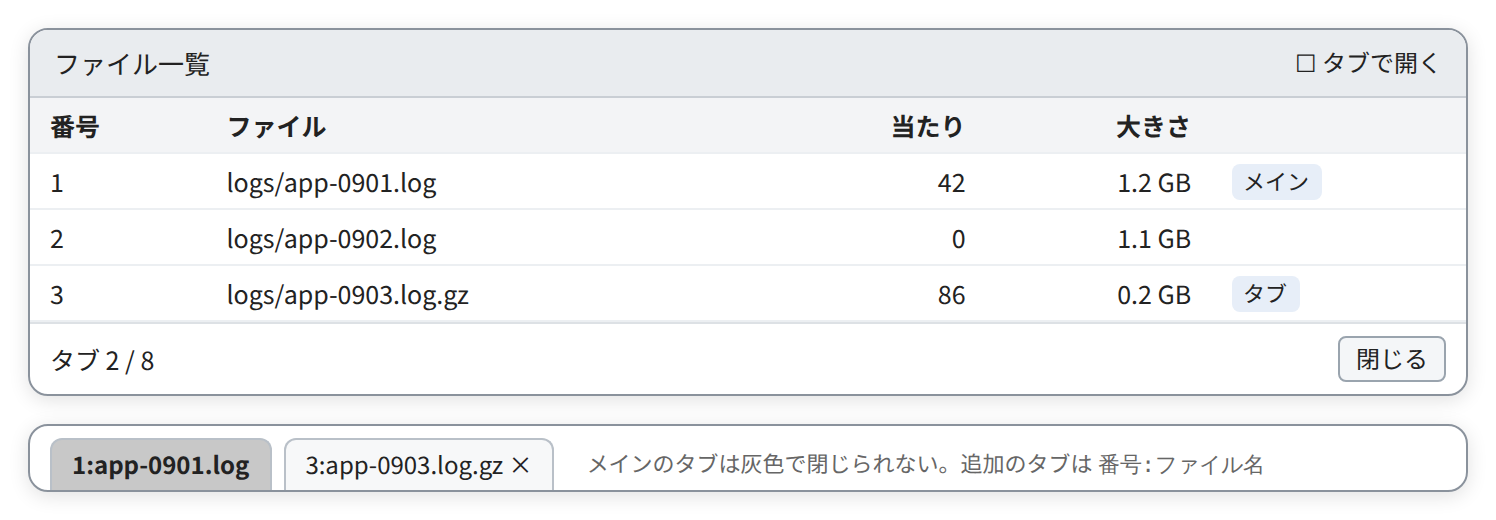
- Double-click / Enter on a row to open it. Right-click a row for the file actions window (§1; from v1.9.0).
- Open in (top right: Main, Tab, App; your choice is remembered. App was added in v1.9.0)
- Main (default): replaces the main tab’s content with that file and shows its start
- Tab: opens it in an extra tab, named
3:file-name - App: opens the original file in the app for its extension (a PDF app for .pdf, Word for .docx and so on; the OS settings decide which app). No UwView tab is added. If the original file cannot be found, you are told at the bottom of the list
- Up to 8 tabs (the main tab + 7 extra). With 8 open, the file is not opened and you see “Up to 8 tabs (main + 7). Close one, then open it.” Old tabs are never closed for you. This limit counts only tabs opened from this list (tabs from “File → Open” are not counted).
- A file that is already open is simply switched to (the same file is never opened twice).
- The main tab cannot be closed (it has no ×), because the results window and the file list are based on it.
- The main tab is gray, so it stands out from the extra tabs (since 1.7.3.4).
- Tab names longer than 27 characters are cut to 27 with
...at the end. Hover a tab to see the full file name (its location on the second line). - Double-clicking a search result opens it in the main tab, whatever the Open in setting (§7).
10. Color highlighter
Separately from search, always colorize the terms or patterns you choose (ERROR in red, WARN in yellow, and so on).
The manager (the highlighter button on the toolbar)
| Control | Meaning |
|---|---|
| Add rule (+) / Presets | Add rules. 7 presets: generic log levels, syslog / Linux, Web access (HTTP), JSON log, GeoJSON, KML, GNSS NMEA |
| Rule columns | ▲▼ (priority; higher rules win), Enabled, ✕, color swatch, pattern, Regex, Aa (ignore case), Whole line (color the whole line), text color and background color |
| Load (reload) · Export… (up arrow) · Import… (down arrow) | Switch rule sets / write to or read from a file (.uwvhl) |
| Save | Save under a name and close |
| Apply (check mark) | Confirm under the current name and close |
| Close | Discard changes and close |
- The text in parentheses is the button’s icon. Hover to see its name.
- Keeping to 8–12 colors is recommended (more are hard to tell apart).
- Sets can be chosen per tab.
- The yellow of search hits wins over highlighter colors.
In the dark theme (from v1.9.0; §17)
- The pale preset colors (red, orange, green, blue, gray, purple, light blue) are drawn in colors that read well on a dark background. The color values stored in the rules do not change (switch back to light and you get the original colors).
- Colors you chose yourself are not changed. A rule that sets only a light background color is drawn with black text in the dark theme too.
- A rule whose text and background are too close in brightness to read on a dark background gets a ⚠ in the rule list (hover to see why). Changing its text or background color clears it.
Quick coloring (in line mode)
- Double-click a word in the text to select it (again to extend to symbols, a third time to clear).
- Right-click for a small window: Copy (icon), 10 color swatches, Clear color (icon), Manage… (palette icon). Picking a color colors that word.
11. Bookmarks, follow tail, favorites, and files changed outside
| Feature | How to use |
|---|---|
| Bookmarks | Toggle on the top line of the screen. A blue mark appears at the left of the line-number column and on the minimap. The ◀▶ buttons ([ ]) jump to the previous / next bookmark. Ctrl (Cmd)+B toggles one. They are remembered per file and come back when you open the same file (since 1.7.3.6) |
| Toggle several at once (from v1.9.0) | Select a range of lines in the text (§12) and press Ctrl (Cmd)+B to bookmark all of them. If all are already bookmarked, all are removed. Up to 100,000 lines at a time |
| Show in the result list (from v1.9.0) | Bookmarks are merged with the hits in the result list, and Delete in the list removes them (§6) |
| Follow tail | Ctrl (Cmd)+Shift+F also turns it on and off. When on, it moves to the end, checks for appended data every second and scrolls to the end when the file grows (like tail -F). From v1.9.0 it also keeps up with truncation, recreation, rotation and deletion (see “When the file changes outside the app” below) |
| Favorites | The heart icon adds / removes the current file. Favorites appear on the start screen |
Keeping bookmarks (since 1.7.3.6)
- Bookmarks are remembered per file automatically and come back when you open the same file (even if you do not restore the previous session).
- They come back if the file has only been appended to. If its content has changed (the beginning changed, it was recreated, etc.), they are not restored and you see “Bookmarks were not restored because ◯◯ has changed since last time”.
- Removing all bookmarks also deletes that file’s record. Up to the 500 most recent files are remembered.
- File menu “Export bookmarks…“: writes
name-bookmarks.txtas “line-numbertext”. Available once line numbers have been counted (if counting is still running, you are told so).
When the file changes outside the app (from v1.9.0)
The app no longer crashes when another program truncates, recreates or deletes the open file. Each tab checks once a second and tells you as follows.
| What happened | Example | Notice bar when follow tail is off |
|---|---|---|
| Truncated | : > app.log, truncate |
“app.log was truncated” |
| Recreated (the beginning or the content changed) | Overwritten with other content | “app.log was recreated” |
| Rotated | A new app.log appeared after mv app.log app.log.1 |
“app.log was replaced by another file with the same name (rotation)” |
| Deleted | rm app.log |
“app.log was deleted” |
With follow tail off
- A yellow notice bar appears above the text. Reload on the bar (the same as F5) reopens the current content; × closes the bar.
- Until you reload, the old content stays visible. Parts that are gone show as empty.
- After a deletion there is no Reload. When a file with the same name appears, the bar changes to “replaced” and Reload appears.
With follow tail on (it keeps up by itself, like tail -F)
| What happened | What it does |
|---|---|
| Truncated / recreated | Reloads by itself, moves to the end and keeps following. The bar shows “app.log was truncated, so it was reloaded” (the same form for recreation) for 4 seconds |
| Rotated | Reopens the new file with the same name and keeps following. The bar shows “Reopened the new app.log and following it” for 4 seconds |
| Deleted | Shows “app.log was deleted. It will be reopened and followed when a file with the same name appears” and waits; when the file appears, it reopens it |
- If you had searched, reloading empties the result list and shows “The file was reloaded; please search again”.
- Bookmarks after a reload follow the same rule as F5 (they are not restored if the content changed).
- A tab in the background tells you (and reloads) when you bring it to the front.
- Multi-file result tabs (§7) are not reloaded, as with F5 (only the bar appears).
12. Selection, copy, save
Text (in line mode)
- Left-drag to select a range of lines (it scrolls automatically at the edge). Click or press Esc to clear.
- Ctrl (Cmd)+C copies. Right-click for “Copy” and “Save to file…”.
- Copying more than 100,000 lines switches to saving to a file automatically.
- The status bar shows “n lines selected”.
Result list: see §6.
13. Compressed files, Word, Excel and PDF
Word, Excel and PDF (from v1.9.0)
Opening a .docx (.docm), .xlsx (.xlsm) or .pdf extracts the text and opens it (“Extracting text” appears with progress).
| Format | What each line holds |
|---|---|
| Word | One paragraph per line. A table row becomes one line with its cells joined by tabs. After the body, [Footnote] … and [Comment] …. Headers and footers are left out |
| Excel | Sheet!row<TAB>cell<TAB>… (the values as displayed, e.g. dates like 2025/1/21 and amounts like 1,234,567円) |
## page N, followed by the page’s text in reading order (left column first in a two-column layout) |
- The extracted text is kept in a temporary folder (nothing is written next to the original). If the original has not changed, it opens at once the next time.
- The file name in the status bar and the file actions (§1) point to the original file (App opens the Word, Excel or PDF file itself).
- Nothing is written back in the original format (read and search only; you can save or copy the extracted text).
- Not opened: old formats (.doc, .xls), password-protected files, PDFs without text (images only; no OCR) and broken files. You are told why.
- The
uvfcommand extracts and searches the same way (uvf report.docx term,uvf '*.docx,*.pdf' term; add--rawto search Excel’s stored values). Line numbers are the same as in the window (uvf command manual).
Compressed files
When you open a gz, bz2, xz, lzma or zstd file, you are asked how to open it.
| Choice | What happens |
|---|---|
| Expand to text and open | Expands it into the same folder, then opens it (same result as gunzip) |
| Convert to .uwvz and open (Pro) | A UwView Pro feature (not selectable) |
| Cancel | Does not open |
- If an expanded file already exists, it asks whether to open it or expand again.
- If disk space looks short (about 4× the compressed size as a guide), it asks whether to continue or cancel.
- While expanding, progress and “Cancel” are shown.
- zip cannot be opened (extract it first). tar, double compression and the like are refused with the reason (the file is not necessarily damaged, so do not delete it).
- The
uvfcommand can search these files as they are, without expanding (§6 of the uvf command manual).
14. Encoding and language
- Encoding (toolbar): auto-detect, UTF-8, UTF-8 (BOM), Shift-JIS, EUC-JP, UTF-16LE, UTF-16BE. Switching does not rebuild the index. The status bar shows “(auto: detected name)” or “(manual)”. Remembered per tab.
- Language (toolbar): 日本語 / English. Remembered. Follows the OS language at first.
15. Using uvf from a console (command line setup)
Menu “Help → Command line setup…” lets you type uvf in a console.
| OS | What happens |
|---|---|
| Windows | Added to the user’s PATH (no administrator rights needed) |
| Mac · Linux | Creates a link in /usr/local/bin (you may be asked for an administrator password). On Linux without permission, ~/.local/bin |
If it is already registered, you can re-register or remove it. When the app runs directly from the disk image (dmg), you are asked to move it into the Applications folder first.
16. Keyboard and mouse reference
Text
| Action | Effect |
|---|---|
| ↑ ↓ / PageUp PageDown | One line / one screen |
| ← → / Home | One character sideways / left edge |
| Ctrl (Cmd)+Home / End | Start / end |
| Wheel / Shift+wheel | Three lines / sideways scroll |
| Left-drag | Select a range of lines |
| Ctrl (Cmd)+C / Esc | Copy / clear selection |
| Double-click | Select a word (quick coloring) |
| Right-click | Coloring window, or the selection menu |
Result list and file list
| Action | Effect |
|---|---|
| Double-click / Enter | Go to that line / open that file |
| ↑ ↓ PageUp PageDown (+Shift) | Move (Shift extends the selection) |
| Ctrl (Cmd)+A / C | Select all / copy |
Other: Enter in the search box searches, Enter in the jump box jumps, clicking or dragging the minimap moves there, and the wheel over the tab row scrolls it sideways.
Shortcuts (since 1.7.3.6. On a Mac, read Ctrl as Cmd)
| Key | Effect |
|---|---|
| Ctrl+F | Move to the search box (selects all its text) |
| F3 / Shift+F3 | Next hit / previous hit (on a Mac, also Cmd+G / Cmd+Shift+G) |
| Ctrl+L | Move to the jump box. Press Enter in the jump box to jump |
Ctrl+B / [ · ] |
Toggle a bookmark (all selected lines if a range is selected; from v1.9.0) / previous · next bookmark |
| Ctrl+Shift+F | Follow tail on/off |
| Ctrl+Shift+K | Open the Command Line dialog (§8) |
| F5 | Reload the file (reopens at the same position with the same tab order; remembered bookmarks come back) |
| Esc | Back from the search box or jump box to the text |
| Ctrl+, | Open the Settings window (§17; from v1.9.0) |
| Ctrl++ / Ctrl+- / Ctrl+0 | Larger / smaller / default text size (text and result list; from v1.9.0). Ctrl+wheel also works |
| Delete (in the result list) | Remove the bookmarks of the selected lines (§6; from v1.9.0) |
- While typing in the search box or jump box,
[and]are typed as characters. - Multi-file result tabs (
uvf -open) are not reloaded by F5 (“This tab cannot be reloaded” appears). - From v1.9.0 you can change the key bindings, including a vi/less-style preset (
jkgGnNand more; §17). The table above shows the Standard bindings.
17. The Settings window (keys, display) and saved settings
From v1.9.0 there is a Settings window.
| OS | How to open it |
|---|---|
| Windows · Linux | Menu “Tools → Settings…” (Ctrl+,) |
| Mac | “Settings…” in the app menu (Cmd+,) |
It has two tabs, Keys and Display. Changes take effect at once and are remembered automatically.
Keys (key bindings)
| Part | Meaning |
|---|---|
| Presets: Standard / vi/less style | Replace all bindings at once (table below) |
| List | Action, current keys, default keys (the Standard bindings), Reset (that action to its default), Clear (remove its keys) |
| Box below | Select an action in the list and this box waits for a new key. The key you press is bound to that action |
| Reset all to defaults | Resets every action (the same as choosing Standard) |
| Export… / Import… | Write / read the bindings as a .uwvkeys file, to take them to another machine (also between Mac and Windows / Linux; Ctrl and Cmd are swapped) |
Binding a key
- Select an action in the list.
- Press the key you want. Up to two keys per action. Pressing a key when two are already bound replaces the second. Esc cancels.
-
If the key is already bound to another action, you are asked on the spot: move it to the selected action (it is removed from the other one) or keep it on the other action.
-
Digits cannot be bound, because they are count prefixes (
5j= five lines down,120g= line 120). - While you are in a text box such as the search box or jump box, single-character keys (
j,k,[and so on) are typed as text. Keys with Ctrl, F keys and Esc still work.
Presets
- Standard: the same bindings as before (the table in §16). The new actions below are listed too, but have no keys (you can bind them yourself).
- vi/less style: Standard plus these keys.
| Key | Action |
|---|---|
j / k |
One line down / up (type a number first for N lines; 5j = five lines down) |
h / l |
Scroll left / right |
^ / $ |
Left end / right end of the line |
g / G |
Go to the start (type a number first to go to that line; 120g = line 120) / go to the end |
n / N |
Next hit / previous hit (on a Mac, bound instead of Cmd+G / Cmd+Shift+G) |
* / # |
Search for the next / previous occurrence of the selected word (double-click to select it) |
m |
Toggle a bookmark (all selected lines if a range is selected) |
f |
Follow tail on/off |
v |
Cycle the result list switch (Hits + bookmarks → Bookmarks only → Hits only; §6) |
+ / - |
Make the result list window larger / smaller |
| Ctrl+Shift+O | A small window to pick an open file (type part of a name to narrow, Enter to go, Esc to close) |
Display (fonts and theme)
| Part | Meaning |
|---|---|
| Theme: Follow OS / Light / Dark | The default is Follow OS, which follows the OS’s light / dark switch on the spot |
| Body font | Monospaced fonts are listed first. “Default” means Cascadia Mono, Menlo, Consolas and the like |
| Size | 6–48. The result list is shown 2 points smaller than the text. Line height follows the font |
| Reset font | Resets the font and size to the defaults |
- Over the text or the result list, Ctrl (Cmd)+wheel and Ctrl++ / Ctrl+- also change the size, and Ctrl+0 returns to the default. The text and the result list change together.
- In the dark theme, the window, text, result list, minimap (orange hits, blue bookmarks, the band for where you are), toolbar icons, dialogs and the notice bar all turn dark. For highlighter colors see §10.
Saved settings
The following are remembered automatically (<user app data>/UwView/settings.json).
Language, highlighter sets, search history (50), predefined filters, the previous files and positions, recent files (15), favorites, where the file list opens files, the Command Line base folder and history (50 sets), the result list switch, key bindings (only those that differ from Standard), the theme, and the font and size
18. Limits and cautions
- Lines display up to 8,192 characters.
- Line endings: LF and CRLF. Bare CR line endings are not fully supported. Line breaks in UTF-16 are not exact.
- A literal search in Shift-JIS can, rarely, report a hit that straddles a character boundary (a regex search does not).
- zip cannot be opened. The search box covers one file at a time (for several files, use the Command Line, §8, or uvf).
- Reloading a file that changed outside the app does not update the search results by itself (search again; §11).
- Word, Excel and PDF are read and searched only. Old formats (.doc, .xls), password-protected files and PDFs without text cannot be opened (§13).
19. Differences in the browser build
- A notice appears first (meant for up to about 3 GB / 100 million lines, the scrollbar cannot be used while the index is built, and so on). OK closes it. The notice’s “Get the desktop version” (down arrow) and “See UwView Pro” (open in a new window) buttons are icons.
- There is no menu and no About. The result list and highlighter appear overlaid on the window.
- Not available: opening by path, follow tail, favorites, restoring the previous session, the compressed-file prompt, multi-file results and the file list, drag & drop, the Command Line (§8), the Settings window (§17).
- The theme only follows the OS (dark on a dark OS).
- Settings are not saved.
Related
- UwView Pro User Guide (the paid edition’s window: index, multi-stage narrowing, tallies, editing)
- uvf command manual (the free CLI) · uvp command manual (the Pro CLI)
- Download · Help · Support
- Originals on GitHub (same content, PDF available): UwView GUI manual (Japanese) · PDF (Japanese)
- Release notes: v1.9.0 “Full Spectrum” · previous release v1.8.1.9 “Finder Scope”