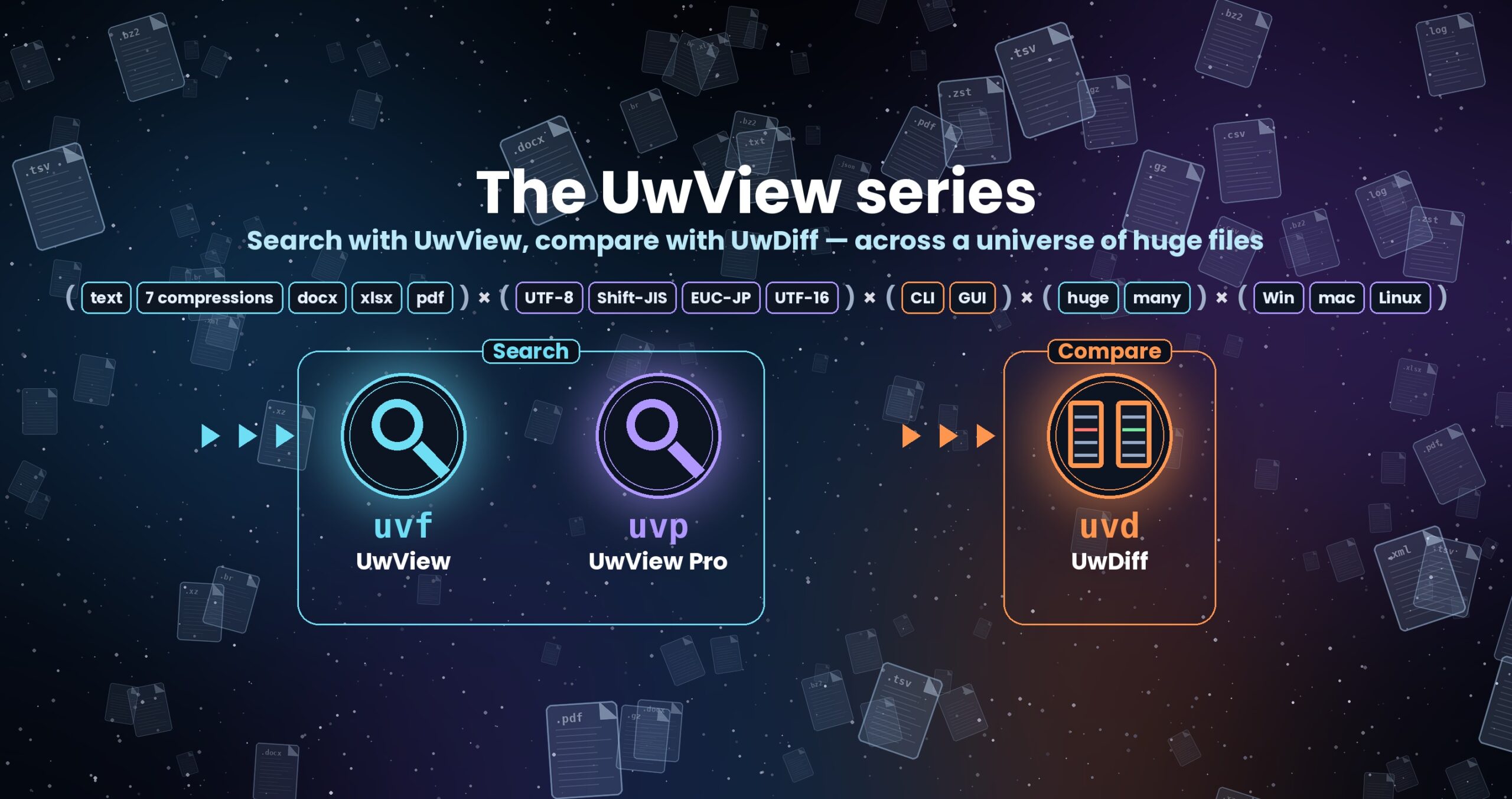
The UwView series — search with UwView, compare with UwDiff
Open and search huge files with UwView; compare two files or two folders with UwDiff. Both run on Windows, macOS and Linux. → UwDiff overview
Help
How to get UwView and the basics of using it. UwView is a CLI / GUI tool for finding things with the CLI and reading them in the GUI, on text far larger than your RAM. UwView (free) gives you the GUI (window) with its search, and the CLI (uvf) you run from the terminal (it does not write to your files). The paid edition UwView Pro adds a saved index (instant from the second open), a bundled index for many files, narrowing and counting, editing (Edit Upgrade) and the uvp CLI.
On this page the CLI (uvf) is compared with ripgrep and the GUI with klogg.
Current release: v1.9.0 “Full Spectrum” (both UwView and UwView Pro). From v1.9.0 the free edition also searches the text inside Word, Excel and PDF files, and adds dark theme, font and key-binding settings (with a vi/less preset), bookmarks in the result list and brace patterns {a,b}. Pro keeps Shift-JIS, EUC-JP and UTF-16 files as a UTF-8 index and searches them as fast as UTF-8. Since v1.8 the window’s Command Line takes the same arguments as uvf and uvp. It searches many files at once, mixing plain text with seven compressed formats in a single run, and the results can be read right in the GUI.
This page covers the essentials. The details are here:
| What you want to know | Where |
|---|---|
How to write uvf commands, options, regex, side by side with ripgrep |
uvf command manual |
| Using the GUI (window) (search, result list, file list and tabs, highlighter, keys) | UwView (free) User Guide |
| The current release, v1.9.0 | Release notes (Japanese and English) |
The UwView Pro GUI (drill-down, tallies, .uwvz, editing) |
UwView Pro User Guide |
The uvp CLI (Pro) |
uvp command manual |
Get it / download
The easiest way to install the free edition is Homebrew (Mac) or Scoop (Windows). The uvf CLI works right away.
brew install --cask amru195704/uwview/uwview                        # Mac (update: brew upgrade --cask uwview)
scoop bucket add uwview https://github.com/amru195704/scoop-uwview  # Windows (first time only)
scoop install uwview                                                # Windows (update: scoop update uwview)
On Linux, or to install by hand, pick the file for your OS and architecture from GitHub Releases or the download page (no .NET installation needed). Homebrew and Scoop also download from Releases and check the SHA256. Checksums are in SHA256SUMS-1.9.0.txt on Releases.
File (e.g. UwView-1.9.0-mac-arm64.dmg) |
Target |
|---|---|
UwView-<ver>-mac-arm64.dmg |
macOS (Apple Silicon) |
UwView-<ver>-mac-x64.dmg |
macOS (Intel) |
UwView-<ver>-win-arm64.zip |
Windows (ARM64) |
UwView-<ver>-win-x64.zip |
Windows (x64) |
UwView-<ver>-linux-aarch64.tar.gz |
Linux (ARM64) |
UwView-<ver>-linux-x86_64.tar.gz |
Linux (x86_64) |
The UwView Pro application itself (UwViewPro-…) is downloaded directly from the download page. On its own it runs with the same features as the free build; entering a license key enables the Pro features (see below).
To try it with no install, use the browser WASM demo (Chromium-based browsers recommended).
Install / launch
- macOS: open the dmg, drag
UwView.app(UwView Pro.appfor Pro) to Applications and launch it. The builds are Developer ID-signed and notarized by Apple, so they start without a warning. - Windows: unzip and run
UwView.Desktop.exe(UwView.Pro.App.exefor Pro) — the GUI. The CLI isuvf.exein the same folder (uvp.exefor Pro). If SmartScreen warns, choose More info → Run anyway. - Linux: extract the tar.gz and run
./UwView.Desktop(./UwView.Pro.Appfor Pro); if it will not start,chmod +xit first.
Once it starts, the window title reads UwView(uvf)-Full Spectrum(v1.9.0) (UwView Pro(uvp)-Full Spectrum(v1.9.0) for Pro), so you can check the version at a glance.
Using the GUI (window)
The GUI never loads the whole file into memory; it draws only the lines on screen, so you can move to the end the moment a file opens. It is compared with klogg (at the end of this section).
The window
| Part | What it shows |
|---|---|
| Menu | File: Open… / Close (current tab) / Close all. Help: guide, news and contact (web), GitHub, Command line setup…, About (on a Mac, “About UwView” in the app menu) |
| Toolbar | Buttons are icons. Hover to see a button’s name (the same in every other window. Yes / No, Open / Close, Save, Cancel and the like keep their text labels) |
| Tabs | One tab per file, with the file name, indexing %, and ×. When there are many, they stay on one row and scroll sideways (the wheel scrolls them) |
| Status bar | File path / “line mode” or “page mode” / position / encoding. On the right, indexing progress and “Cancel”; at the far right, the time the last operation took |
| Minimap | A miniature of the whole file. Orange = search hits, blue = bookmarks, gray band = where you are. Click or drag to go there |
| Start screen | Shown when no file is open: “Open file…”, recent files (up to 15) and favorites |
Opening files
- Ways to open: File → Open… or the toolbar’s open button (multi-select works), drag & drop onto the window, double-click on the start screen, the OS’s “Open with”, or the CLI’s
uvf -open(below). - Pick up where you left off: on launch it asks “Restore the previous files (N)?”. “Restore” brings you back to where you were.
- Readable the moment it opens: right after opening you are in page mode — you can scroll the whole file, go to the end, and jump by ratio like
50%(no line numbers yet). When the line index is ready it switches to line mode, with line numbers, jump-to-line and line selection. If you press “Cancel” to stop indexing, you can keep reading in page mode. - A search started before the index is ready searches and indexes in the same single read.
- Tabs: multiple files open as tabs; each tab has its own index.
- Each line is displayed up to its first 8,192 characters (the rest shows as “…”).
Opening a compressed file
When you open a gz, bz2, xz, lzma or zstd file, you are asked how to open it.
| Choice | What happens |
|---|---|
| Expand to text and open | Expands it into the same folder, then opens it (same result as gunzip) |
Convert to .uwvz and open (Pro) |
A UwView Pro feature (not selectable in the free edition) |
| Cancel | Does not open |
- If an expanded file already exists, it asks whether to open it or expand again. If disk space looks short (about 4× the compressed size as a guide), it asks whether to continue.
- zip cannot be opened in the GUI (extract it first). tar, double compression and the like are refused with the reason (the file is not necessarily damaged, so do not delete it).
- To search without expanding, the CLI
uvfsearches these files as they are (below).
Moving around
| Action | Effect |
|---|---|
| ↑ ↓ / wheel | One line / three lines |
| PageUp / PageDown | One screen |
| Ctrl (Cmd on Mac) + Home / End | Start / end of file |
| ← → / Shift + wheel / sideways swipe | Scroll sideways. Home goes to the left edge |
| Click or drag the minimap | Go to that position |
| Type in the jump box and press the go button | 50% → halfway / 12345 → line 12345 (line mode). A bare number in page mode is a byte offset |
- The jump box runs with Enter or the go button (Ctrl (Cmd)+L moves to the jump box).
- The line you jump to is centered and highlighted in light blue.
Search
- Type a term in the search box and press Enter (or the search button). A progress window shows the ratio, hit count and “Cancel”.
- If there are hits, the result list opens automatically.
-
Hits are highlighted in yellow, with orange marks on the minimap.
-
Regex: treat the term as a regular expression. Leave it off for the fast literal search (off by default). Regex uses .NET syntax.
- Ignore case: ignore upper/lower case for Latin letters.
- ◀ Prev / Next ▶ moves between hits; the count reads like “3/8,739”.
- The search box suggests your last 50 searches. Save frequent searches with ★ (predefined) and run them straight from the list.
- Search covers only the file in the current tab. Use the CLI (
uvf) for several files (below). - There is no cap on the number of hits.
Result list
Lists only the matching lines in a separate window.
- Double-click / Enter jumps to that line in the main view.
- ± N lines of context: also shows lines around each hit. The free edition goes up to ±1 (Pro up to ±64). Context lines are dimmed, separated by “⋯”.
- Save… writes what is shown to a file (
name-filter.txt, UTF-8). “Include line numbers” is on by default. - Select with click, Ctrl (Cmd)+click to add, Shift+click for a range. Ctrl (Cmd)+A selects all, Ctrl (Cmd)+C copies. Right-click for “Copy” and “Save to file…”.
Multi-file results, file list and tabs
Search several files with the CLI (uvf) and read the results in the GUI.
uvf -open '*.log' ERROR
- File number 1 appears in the main tab and the results window opens (without a search term, the file list opens instead). The GUI does not search again.
- The line column of the results window reads
file-number:line(e.g.3:128). Selecting a row shows the real path at the bottom of the window. - Double-click (or Enter) jumps to that line of that file. If the file is in the main tab it just moves there; if it is open in an extra tab it switches to that tab; otherwise the main tab’s content is replaced with that file. A compressed file is decompressed next to the original without asking, then opened.
- The file list (the bulleted-list icon) shows which number is which file, with each file’s hit count and size.
- Turn on Open in tab in the list to open files in extra tabs (named like
3:file-name). Up to 8 tabs (the main tab plus 7). A file that is already open is switched to, not opened again. - The main tab is gray and cannot be closed. Tab names longer than 27 characters are cut with
...; hover to see the full name.
Limits of the free edition (vs UwView Pro)
| Item | UwView (free) | UwView Pro |
|---|---|---|
| From a result to the original line | Reopens the file, then jumps (a large file takes a moment) | Jumps at once inside the bundled index |
| Search box in the GUI | Searches only the file in the main tab (search all files again from the CLI) | Searches the whole bundle |
| Hits handed to the GUI | Up to 1,000,000 (first 1,000 characters of each line) | — |
| ± N context | Not shown | Up to ±64 |
Color highlighter
Independently of search, always colorize the terms or patterns you choose (ERROR in red, WARN in yellow, and so on). Open the manager with the highlighter button on the toolbar.
- Supports regex, ignore-case, and whole-line / match-only coloring, with a color-blind-friendly 32-color palette. Rules higher in the list win. Keeping to 8–12 colors is recommended.
- 7 bundled presets: generic log levels, syslog / Linux, Web access (HTTP), JSON log, GeoJSON, KML, GNSS NMEA.
- Save named sets and export / import them as
.uwvhlfiles. Sets are chosen per tab. The yellow of search hits wins over highlighter colors. - Quick coloring (in line mode): double-click a word to select it (again to extend to symbols, a third time to clear), then right-click and pick one of the 10 color swatches in the small window.
Bookmarks, follow tail, favorites
| Feature | How to use |
|---|---|
| Bookmarks | Toggle on the top line of the screen. A blue mark appears at the left of the line-number column and on the minimap; ◀▶ ([ ]) jumps between bookmarks. They are remembered per file and come back when you open the same file (restored if the file has only grown, not if its contents changed). File menu → Export bookmarks… writes name-bookmarks.txt |
| Follow tail | When on, it moves to the end, checks for appended data every second and scrolls to the end when the file grows (like tail -f). Appends only (it does not follow truncation or rotation) |
| Favorites | The heart icon adds / removes the current file. Favorites appear on the start screen |
Selection, copy, encoding
- Selection (in line mode): left-drag to select a range of lines. Ctrl (Cmd)+C copies; right-click for “Copy” and “Save to file…”. Copying more than 100,000 lines switches to saving to a file automatically.
- Encoding (toolbar): auto-detect, UTF-8, UTF-8 (BOM), Shift-JIS, EUC-JP, UTF-16LE, UTF-16BE. Switching does not rebuild the index. Remembered per tab.
- Language (toolbar): Japanese / English. Follows the OS language at first.
Keys
| Action | Effect |
|---|---|
| ↑ ↓ / PageUp PageDown | One line / one screen |
| Ctrl (Cmd) + Home / End | Start / end |
| ← → / Home | One character sideways / left edge |
| Left-drag / Ctrl (Cmd)+C / Esc | Select lines / copy / clear selection |
| Double-click / right-click | Select a word / coloring window, or the selection menu |
| Double-click / Enter in the result list or file list | Go to that line / open that file |
| Ctrl (Cmd)+F / F3 / Shift+F3 | Search box / next hit / previous hit (on a Mac, also Cmd+G / Cmd+Shift+G) |
| Ctrl (Cmd)+L | Jump box (press Enter in the jump box to jump) |
Ctrl (Cmd)+B / [ · ] |
Toggle a bookmark / previous · next bookmark |
| Ctrl (Cmd)+Shift+F / F5 / Esc | Follow-the-end on/off / reload / back from the search or jump box to the text |
- While typing in the search box or jump box,
[and]are typed as characters. Key assignments cannot be changed. - The free edition has no settings screen. Language, highlighter sets, search history, predefined searches, the previous files and positions, recent files, favorites and the “Open in tab” state are remembered automatically.
GUI — compared with klogg
Same machine, same files, same term; the hit counts match (conditions under Conditions behind the numbers).
| 3 GB | 10 GB | 50 GB | |
|---|---|---|---|
| Open: klogg | 3.65 s | 10.98 s | 52.55 s |
| Open: UwView (free, GUI) | 2.99 s | 10.13 s | 50.44 s |
| Search: klogg | 0.56 s | 11.75 s | 55.59 s |
| Search: UwView (free, GUI) | 0.32 s | 10.15 s | 53.50 s |
- Opening and searching are both level with klogg (only the 3 GB search is 1.75× in UwView’s favour).
- The gap appears when you go all the way from searching to reading. klogg reads the file once to open and once more to search; the CLI’s
uvf … -openreads it once. klogg (open + search) takes 4.21 s, 22.73 s and 108.1 s;uvf … -opentakes 3.40 s, 10.42 s and 50.76 s (level at 3 GB, 2.18× at 10 GB, 2.13× at 50 GB). - klogg cannot scroll to the end until its index is built (4 min 18 s at 258 GB). The UwView GUI can move to the end the moment the file opens.
- On the second open, klogg rebuilds its index every time; UwView Pro opens from its saved index in 0.01–0.07 s.
For more, see the About page and An honest re-measurement against klogg.
CLI — uvf (free) / uvp (Pro)
Both editions ship a CLI for the terminal: uvf with the free build and uvp with Pro. Both use the same engine as the GUI, so you can search with the CLI and, when there is a hit, hand it to the GUI with -open. It is compared with ripgrep (CLI — compared with ripgrep).
PATH setup
In the app, choose Help → “Command line setup…” and the command is registered so you can type it by name. If it is already registered, you can re-register or remove it.
| OS | Where it goes |
|---|---|
| macOS | A link to uvf (uvp for Pro) in /usr/local/bin. You may be asked for an administrator password |
| Windows | The app folder is added to the user’s PATH environment variable (no administrator rights needed) |
| Linux | /usr/local/bin (or ~/.local/bin without permission) |
- If you are running the app straight from the dmg, it asks you to move it to Applications first.
- On Mac and Linux,
uvfis a single native executable (on a Mac, it starts in 0.01 s). On Windows, paths longer than 260 characters work.
uvf --version        # version
uvf --help           # usage
uvf --help files     # how to name files, in detail
uvf --help regex     # regular expressions (.NET syntax), including how to rewrite a ripgrep pattern
uvf — the free build’s CLI (two forms only)
uvf FILE TERM [options]     # search and print the hits
uvf -open [FILE] [TERM]     # launch the GUI; open FILE if given, and search TERM if given
The term is a literal string by default (case-sensitive). Options can go anywhere, except -open, which goes first or last.
| Option | Meaning |
|---|---|
-i / -E / -v |
Ignore case / regex (.NET) / lines that do not match |
--json |
One JSON object per line (JSON Lines) |
-H / -h |
Always / never print the file name (-h on its own prints usage) |
--files |
Don’t search; just list what the pattern expands to (and how many files were skipped) |
--no-ignore |
Don’t skip files matched by .ignore / .gitignore |
-open |
Show the results in the GUI (works with several files too; cannot be combined with --json) |
--tune [FILE] [--apply] |
Measure the best thread count for this machine; --apply saves it to the settings |
Output: one file prints line<TAB>text; several files print file:line<TAB>text (files in the order you gave them). Lines are printed in full, never truncated. With --json: {"n":line,"line":"text"} (plus "file" for several files).
Exit code: same as grep and ripgrep. 0 = found / 1 = not found / 2 = error (missing file, bad regex, bad pattern, …).
if uvf app.log 'FATAL' > /dev/null; then
  uvf -open app.log 'FATAL'      # show a human the GUI only when there is a hit
fi
Searching many files at once
uvf '*.log' ERROR                    # every .log in this folder
uvf '**/*.log' ERROR                 # subfolders too
uvf 'app.log,app.log.*.gz' ERROR     # plain text and .gz, in one run
uvf '**/*.log' ERROR --files         # just list what would be searched
uvf -open '**/*.log' ERROR           # search, then show the results in the GUI
- Always quote the pattern.
uvfexpands it rather than the shell, so it works the same way on Windows. Forget the quotes and the shell expands the pattern, whichuvfreports as an error. - Separate files with spaces or commas. If there is even one comma, only commas separate, so use commas for paths containing spaces (such as
Program Files). *matches any run of characters (not across folder separators),?any single character,**any number of folders.[ ]and{ }are not wildcards.- When a wildcard is expanded, files matched by
.ignore/.gitignoreare left out (the main rules are the same as ripgrep’s). A file you name explicitly is never left out. Add--no-ignoreto keep them.--filesreports the number skipped at the end. - Hidden files and folders are skipped on every OS. A bare folder name (
'logs') is not accepted; write'logs/**'.
Compressed files (seven formats)
gz, bz2, xz, lzma, zst, lz4 and br are searched as they decompress, with no external commands. An xz file made of several blocks (the default since xz 5.6) is decompressed on several threads. You can mix them with plain text in one run.
uvf app.log.zst ERROR
uvf 'app.log,app.log.*.gz' ERROR -open
uvf does not handle .zip, .tar.gz, OSM .pbf or .uwvz (Pro’s index). Extract them first (UwView Pro handles zip and pbf).
Regular expressions (-E)
-E uses .NET regular expressions. Common patterns are written the same as in ripgrep, but there are differences. Lookaround and backreferences work as is. POSIX classes such as [[:alpha:]] and \p{Han} are not available (the error suggests an equivalent). \d also matches full-width digits. Matching is line by line. Rewriting examples are in uvf --help regex and chapter 7 of the uvf command manual.
CLI — compared with ripgrep
uvf is on par with ripgrep. In the comparisons below, every gap is under 1.5× (under 1.3× for the seven-search totals). It builds no index and reads each file once. Losses first — where ripgrep took less time: searching several plain-text files only (on five plain files uvf took 1.17× as long as ripgrep), and the plain search on 3 GB and 10 GB when run again straight away (hot: 0.32 s vs 0.42 s, 0.99 s vs 1.33 s; these files fit in memory, so both tools answer from memory).
One large file (cold = right after dropping the cache, hot = the second run straight after)
| Seven searches, cold + hot total (seconds) | ripgrep | uvf |
Ratio (rg ÷ uvf) |
|---|---|---|---|
| 3 GB | 31.25 | 30.03 | 1.04 |
| 10 GB | 89.59 | 88.01 | 1.02 |
| 50 GB | 828.97 | 749.14 | 1.11 |
The seven searches are plain, -i, -E, -E (line start), -E -i, -v and -E -v. The plain search on 50 GB took ripgrep 56.06 s / 55.50 s and uvf 51.49 s / 50.52 s (cold / hot).
Compressed files and many files (against the grep family — standard grep, ugrep and ripgrep; hot = the faster of two runs; the compressed files are 979 MB of text compressed in each format)
| Seconds | Standard grep | ugrep | ripgrep | uvf |
Ratio (rg ÷ uvf) |
|---|---|---|---|---|---|
| gz | 0.90 (zgrep) | 0.45 | 0.43 | 0.33 | 1.30 |
| bz2 | 8.03 (bzgrep) | 7.62 | 7.89 | 7.43 | 1.06 |
| xz | 4.01 (xzgrep) | 3.64 | 4.21 | 3.37 | 1.25 |
| lzma | 3.21 (xzgrep) | 2.83 | 3.40 | 2.57 | 1.32 |
| zst | 0.63 (zstdgrep) | 0.65 | 0.54 | 0.50 | 1.08 |
| lz4 | 0.65 (lz4 -dc piped to grep) | 0.33 | 0.31 | 0.28 | 1.11 |
| br | 1.33 (brotli -dc piped to grep) | 0.91 | 0.87 | 0.74 | 1.18 |
| 5 gz files (about 7.4 GB expanded) | 9.43 (zgrep) | 2.56 | 1.34 | 1.04 | 1.29 |
| 7 gz + 5 plain = 12 files (about 60 GB expanded) | 89.35 (zgrep) | 25.38 | 24.62 | 17.60 | 1.40 |
- For a single search,
uvfwas shortest in every compressed format, but the gap to ugrep and ripgrep is 1.03–1.36× — level. Against the standard grep tools it is 2.73× for gz, 2.32× for lz4 and 1.80× for br. - Measured cold (right after dropping the cache), the 12 files took
uvf21.35 s and ugrep 26.85 s — also level. - ripgrep was run with
-zfor compressed files. Versions and machine are under Conditions behind the numbers. - Output was checked against ripgrep (0 mismatches). Tables including Windows and Linux are on the benchmarks page.
- If you ask the same file many questions, Pro’s
uvp, which keeps an index, is the better fit (next section).
What uvf does not have
Context lines (-C), multi-stage drill-down, tallies, sequence search, -head / -tail, -out, replace, reading/writing .uwvz, zip and pbf. Those belong to Pro’s uvp. Neither command searches standard input or across line breaks (for the mapping to ripgrep see chapter 11 of the uvf command manual).
uvp — Pro’s CLI (overview)
On the first run uvp builds an index (.uwvz: the original text compressed, plus line positions), so from the second question on it uses the index and is faster. Naming files, regex and reading compressed files work the same as in uvf.
uvp <file> <term> [stages…] [options]      investigate (main form)
uvp '*.log' ERROR                          bundle several files into one .uwvz and search it (not rebuilt on later runs)
uvp convert <file> [-out x.uwvz]           just build the index (.uwvz)
uvp <file.uwvz> -extract [format] [-out …] restore the original form (no license needed)
uvp <file> <term> -replace <new>           print the full text with replacements (Edit license; the original is not modified)
uvp -open [<file>] …                       launch the GUI
uvf (free) |
uvp (Pro) |
|
|---|---|---|
Search, several files, .ignore / .gitignore, --files |
✓ | ✓ |
| Compressed files (seven formats) | Searched as they decompress | Decompressed into an index |
Index (.uwvz) for faster repeat searches |
— | ✓ |
| Text inside zip, OSM pbf | — | ✓ |
| Multi-stage drill-down, co-occurrence within ±N lines, tallies, sorting, sequences | — | ✓ |
| First / last N hits, writing to a file (compressed too) | — | ✓ |
| Full text with replacements | — | ✓ (Edit license) |
Stages go after the term and run in the order written (think of a pipe). For example, uvp app.log ERROR -C 5 timeout finds timeout within 5 lines of ERROR, and uvp app.log ERROR -uniq 'code=(\d+)' counts ERROR lines per code. Exit codes are the same 0 / 1 / 2 as uvf (2 also when stopped at a cap).
For reference, searching 12 files (7 gz + 5 plain, about 60 GB expanded) twice in a row: uvp‘s first run builds the bundled .uwvz, so it takes 2.34× as long as uvf (41.23 s vs 17.60 s). The second run takes 9.52 s, 1.85× faster than uvf (ripgrep: 24.62 s), and the three runs after the first win the time back. On one 50 GB file, the first run is level with ripgrep (58.42 s vs 56.06 s) and the second takes 6.47 s (8.6× ripgrep at 55.50 s) (hot; conditions under Conditions behind the numbers).
Every command and option, side by side with rg / sed, is in the uvp command manual; drill-down, tallies and editing in the GUI are in the UwView Pro User Guide.
UwView Pro — activating your license
If you bought UwView Pro, a license key starting with UVP-… arrives from Polar after purchase. Open the app, go to Settings → License, paste the key, and activate to enable the Pro features (instant second open with line numbers, faster search, .uwvz archive, a bundled index for many files, zip and OSM pbf, ±64 lines of context in the result list, block selection, the uvp CLI; with Edit Upgrade, editing and -replace). Available for Windows, macOS and Linux (one license, every OS). One-time or monthly, the Edit Upgrade too (prices on the product page). A 14-day free trial key is on the download page. See the UwView Pro User Guide for how to use it.
Known limitations
- Line breaks: LF and CRLF. Lone-CR line breaks (classic Mac) are not fully supported.
- UTF-16 line splitting is not strict; the primary targets are UTF-8 / Shift-JIS / EUC-JP.
- A literal search in Shift-JIS can, rarely, produce a hit straddling a character boundary (regex mode does not).
- Each line is displayed up to 8,192 characters.
- If another program truncates a file while you are viewing it, the app may crash.
- zip cannot be opened in the GUI, and the GUI searches one file at a time (use the CLI
uvffor several files). - Font size and theme cannot be changed.
- If a
.gzcontains a single line longer than 64 MiB and a search matches it, you may see a message that the file could not be read to the end. The file is not damaged; extract it and open the plain text. - The browser build is meant for up to about 3 GB / 100 million lines. It cannot open a file by path, accept drag & drop, follow the tail, keep favorites, restore the previous session, open compressed files, or show multi-file results and the file list. Settings are not saved.
Conditions behind the numbers
- CLI, one large file (seven-search totals, plain search,
uvpon 50 GB): measured withuvf/uvp1.7.3.1 (28 September 2026; the search code is the same as 1.7.3.6) and ripgrep 15.2.0. Cold is right after dropping the cache, hot is the second run straight after.uvp‘s cold run includes building the.uwvz. - Seven compressed formats and many files: hot (the faster of two runs), measured with
uvf1.7.3.4 (search code the same as 1.7.3.6) /uvp1.7.3.5 (same search code as 1.7.3.6), ugrep 7.8.5 and ripgrep 15.2.0 (28 September 2026). The cold figures for 12 files are a separate hand measurement; the five-plain-file figure isuvf1.7.2.7, cold + hot total. - GUI vs klogg (one file, klogg 24.11.0, term
東京, cold): measured on v1.6.6 “First Light” (20 September 2026). UwView Pro’s 0.01–0.07 s second open is from the same period. - The 0.01 s startup of
uvfis on a Mac. - All on a Mac (Apple M4, 10 cores, 32 GB RAM), external USB SSD, with OpenStreetMap Japan XML. Timings vary by machine; do not compare seconds across machines. Conditions and full data are on the benchmarks page.
Need help?
For the GUI, see the UwView (free) User Guide; if uvf does not find what you expect, see chapter 12 “Common stumbling blocks” of the uvf command manual. For bugs or questions, see Support. Feature requests and the roadmap are public at GitHub Issues.
From the developer: a list of my apps, Kindle books and public projects is on GitHub: amru195704.