I’ve released v1.1.1 of UwView, the large-file text viewer (free, on GitHub).
The previous release, v1.1, added a “multi-keyword colorizing highlighter,” but there was one thing that nagged at me: having to open a dialog and write a regular expression just to add a color was a hassle. However nice the colorizing looked, if it took too many steps to reach, it wouldn’t get used day to day.
v1.1.1 is a small update aimed squarely at cutting that friction. Right-click a word you notice and colorize it instantly, and reopen the app to pick up right where you left off. These are the two most common everyday actions, and both are now lighter.
Colorize on the spot with a right-click
This is the headline feature. Select a word in the body text and just right-click to assign it a color. No dialog, no regular expression required.
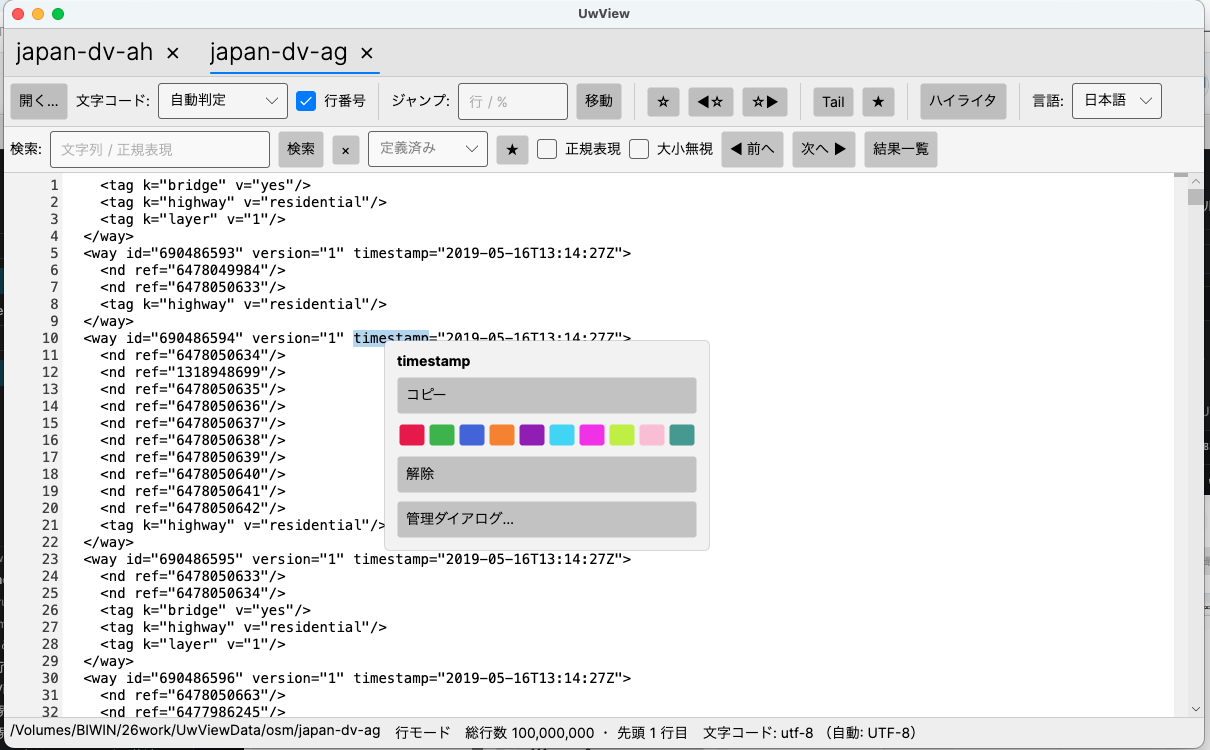
Right-clicking brings up a simple menu: “Copy” + a swatch of the first 10 colors + “Clear” + “Manage rules…”. Click a color and that word is registered as a rule for that color.
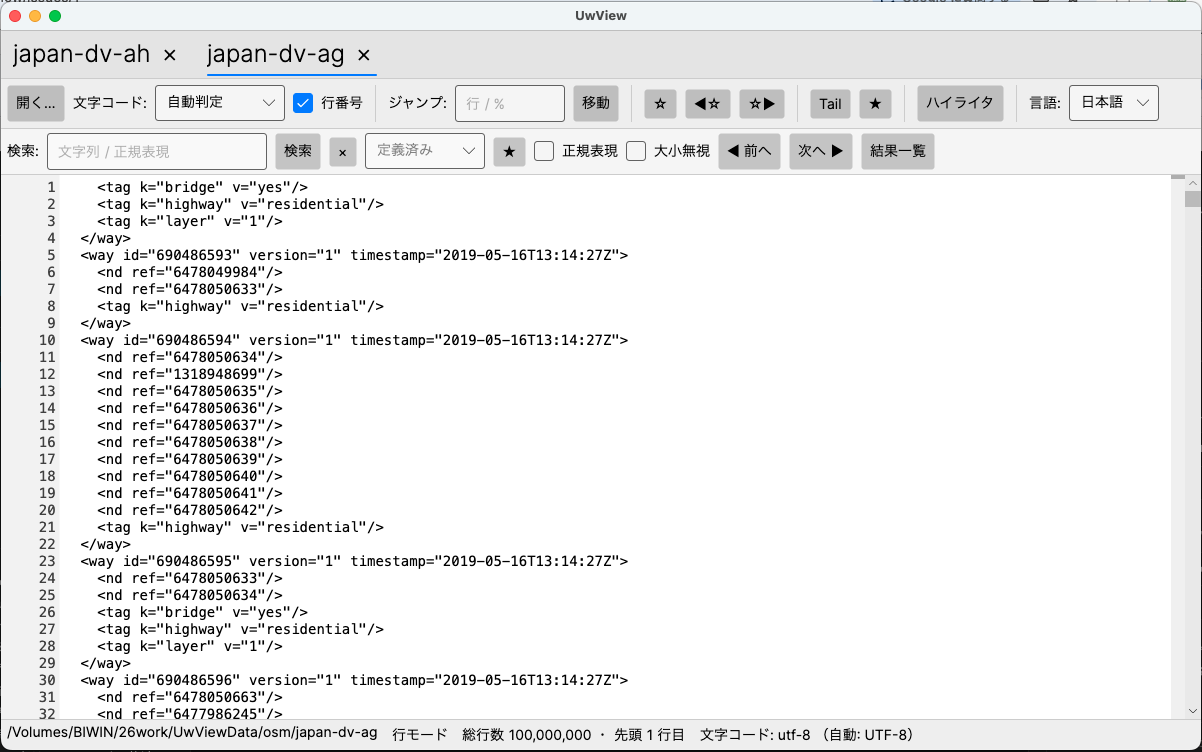
The moment it’s registered, every matching instance of that word currently visible on screen is colorized at once. Below is the state right after coloring “timestamp.” Even in a 100 million-line XML file, scrolling never lags behind the colorizing (because coloring is evaluated on the fly, only for the lines currently visible on screen).
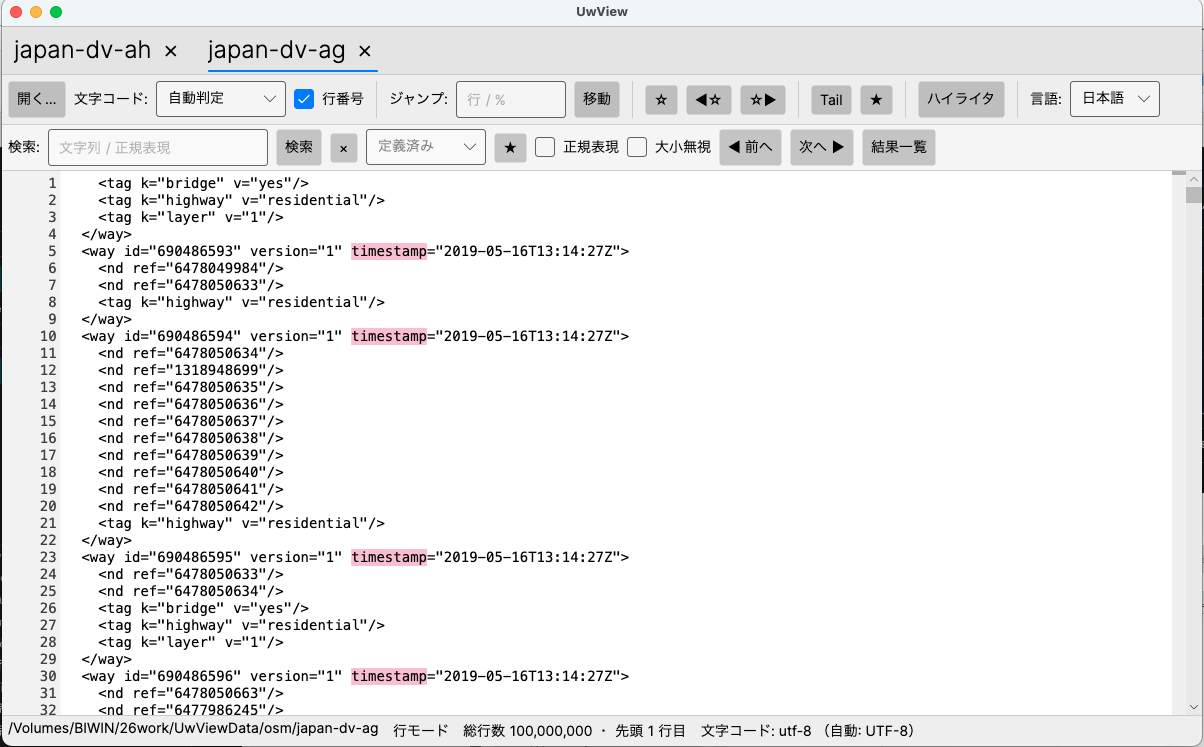
I also refined how words are selected. Double-click cycles through three stages: the first click selects the shortest word (just req out of req-8f2a), a second click in the same spot expands to the whole natural token (all of req-8f2a), and a third click clears the selection. Right-clicking without selecting anything targets the word under the cursor.
Of course, colors added via right-click show up directly in the rule list of the Manage dialog too. You can change their color later, name them and save them as a set, or export them to a .uwvhl file to share. The natural workflow becomes: “right-click to rough in some colors first, then save it as a set once you like it.”
Reopen the app, resume right where you left off
The second feature makes “resuming work” lighter. When you launch UwView normally, it asks whether to restore the files you had open last time.
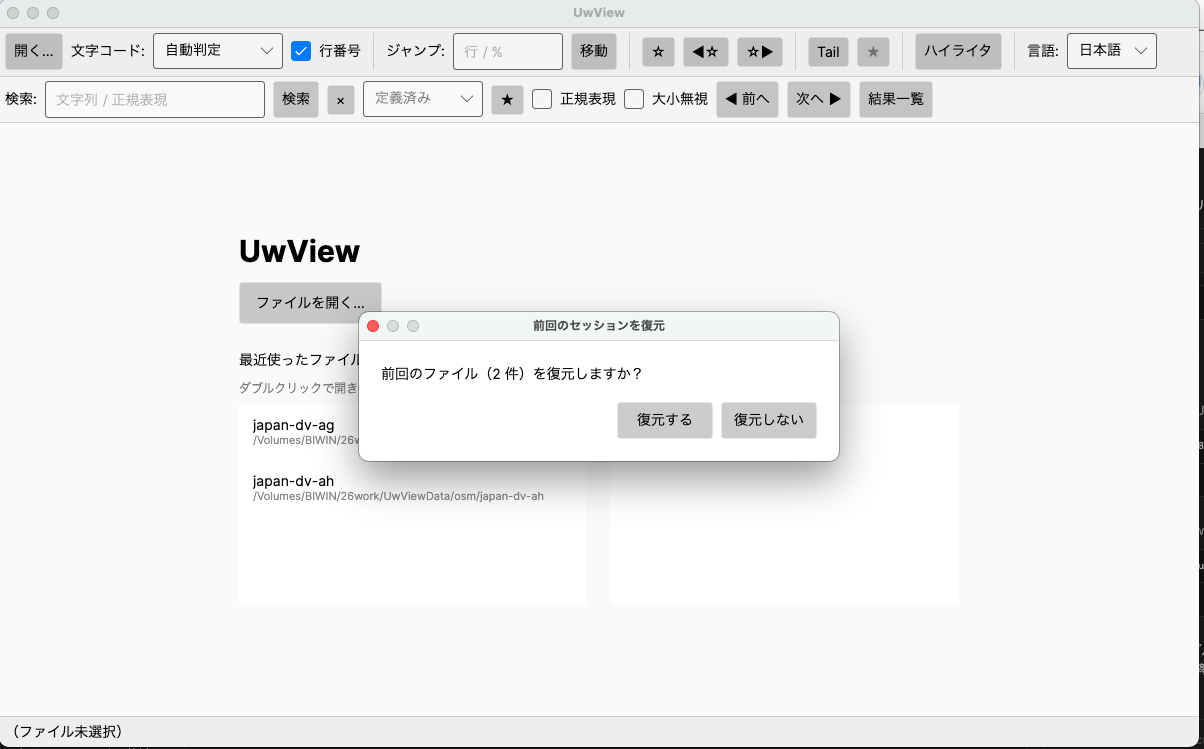
Choose “Restore” and your previous set of tabs reopens together, scrolled back to roughly where you left off.
When no file is open, the start screen shows two lists side by side: “Recent Files” (up to 15 entries) and “Favorites” (toggle with a star). Keep the logs you check often in Favorites, and reopening them is a single double-click.
Note that when you launch UwView by specifying a file directly (double-click, drag-and-drop, or a command-line argument), it skips the confirmation and just opens that file. The restore dialog stays out of the way when all you want is a quick look at one specific file.
Added GeoJSON / KML to the bundled presets
I also expanded the bundled presets for colorizing. v1.1 shipped with 5 (Generic log levels / syslog & Linux / Web access (HTTP) / JSON logs / GNSS NMEA), and v1.1.1 adds GeoJSON and KML, for 7 in total. These additions are aimed at people working with map and surveying data.
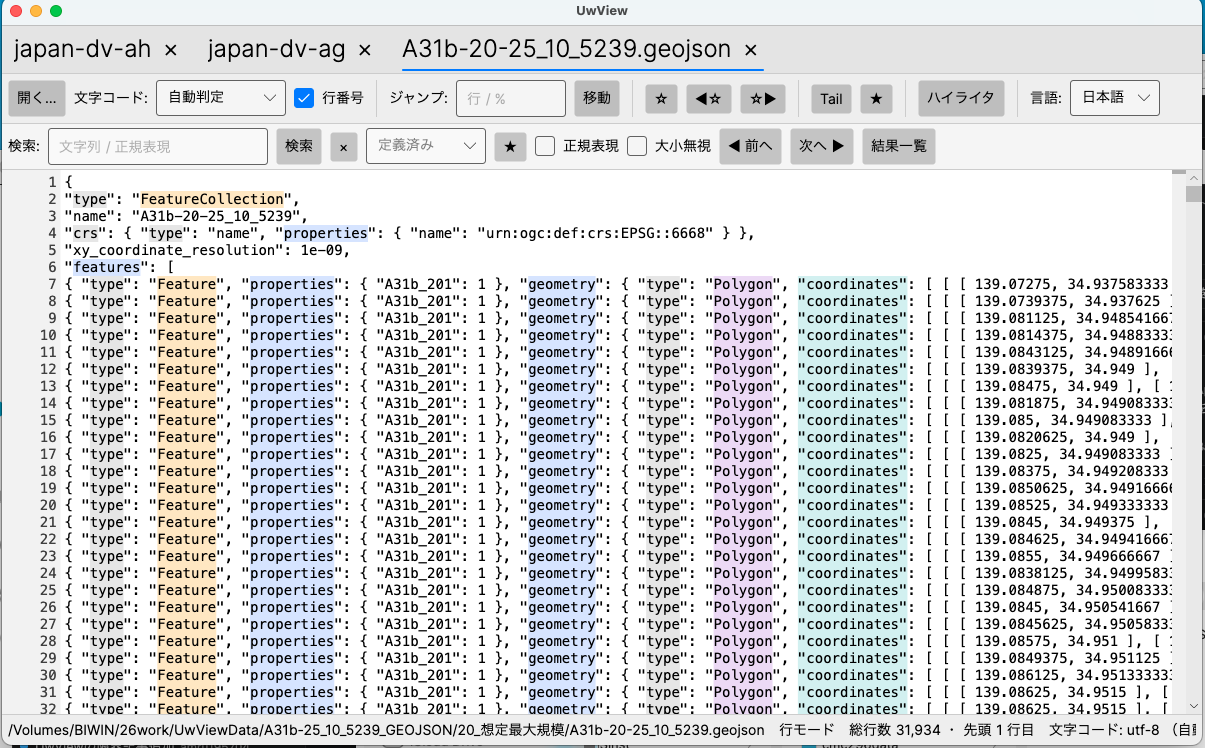
Load the GeoJSON preset and keys like type / properties / geometry / Polygon / coordinates are split apart by color, so you can follow the structure visually even inside a huge run of coordinates.
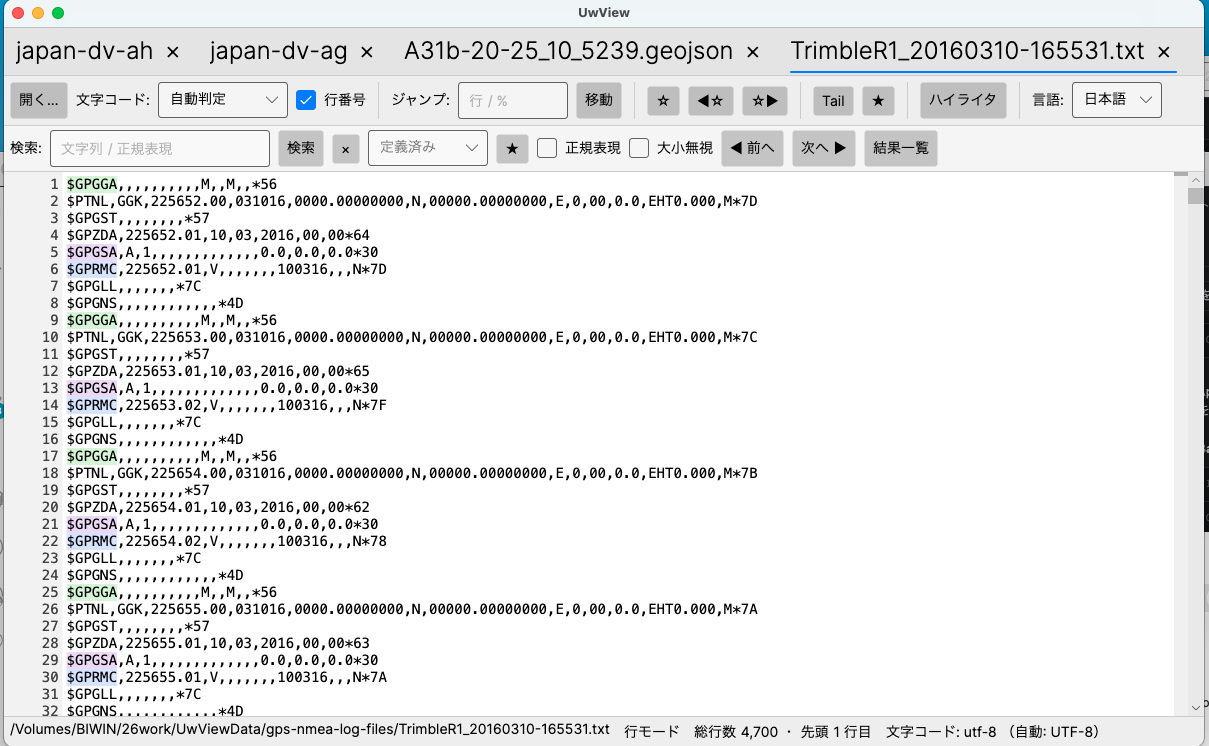
And it’s not limited to map data, of course. The existing GNSS NMEA preset lets you tell sentence types like $GPGGA / $GPGSA / $GPRMC apart at a glance.
Each tab can carry its own dedicated highlighter, so an XML tab can use XML-oriented colors while an NMEA log tab uses NMEA-oriented colors, side by side.
Summary
- Instant colorizing via right-click — select a word, right-click, click a color, done. Double-click cycles through three selection stages. Colors you add also flow into the Manage dialog and
.uwvhlsharing. - Session restore, Recent Files, and Favorites — pick up right where you left off at launch. Reopen quickly from the start screen. Launching with a specific file skips the confirmation entirely.
- Added GeoJSON / KML presets (7 in total). Each tab can have its own separate highlighter.
v1.1.1 is about making colorizing lighter, step by step, all the way down to how many actions it takes to use. It’s free, so if you work with large logs or data, please give it a try.
Related articles
- UwView v1.1 — Reading huge logs by color. Colorizing highlighter and bundled presets
- UwView is now on GitHub — rebuilding a Windows 95-era large-file text viewer for up to 200 million lines, all OSes
Sources
- amru195704/UwView (GitHub) https://github.com/amru195704/UwView
- Candidate features for future releases (Roadmap / Issue) https://github.com/amru195704/UwView/issues/1
Premium edition: UwView Pro (on sale, Windows/macOS/Linux)
The commercial edition: “View and search huge files instantly, any time; save the index so the second time onward it opens instantly with line numbers; searching up to about 9x faster; store logs at about 1/9 the size and open them as-is.” one-time or monthly.
→ https://uvp.y42u.net/en/pro-en/
(UwView / UwView Pro let you view and search the whole file the moment you open it, even on the first open. The index is built in the background, and line numbers appear once it’s complete. UwView Pro saves the index and the compressed cache, so from the second open onward it opens instantly, with line numbers. Other viewers show only the head until indexing finishes, whereas UwView lets you view and search the whole file instantly from the first open.)
From the developer: a list of my apps, Kindle books and public projects is on GitHub: amru195704.
Note
The information in this article is provided for reference only, and its accuracy or completeness is not guaranteed. Feature availability reflects the state at the time of each version and may change in future updates. If you notice any errors or inaccuracies, please let us know in the comments and we will review and correct them.

コメント