
The large-file text viewer UwView has had its features introduced one at a time so far — the color-coding highlighter, right-click instant colorizing and session restore, and so on. This time, instead of introducing each feature in isolation, we’ll show what happens when you chain them together in an actual investigation, as one continuous flow.
The scenario is a fairly common one: “a web server’s access log has swollen to several gigabytes or tens of gigabytes, and you need to find the clusters of 5xx errors and keep the lines that look like they point to the cause.”
- Step 1: Just open it (don’t wait for indexing)
- Step 2: Load the Web access preset and apply colors
- Step 3: Colorize just the IP you’re curious about, on the spot with a right-click
- Step 4: Grasp the context with search, and bookmark suspicious lines
- Step 5: Pick up where you left off across days, with session restore
- What It Still Can’t Do (Honestly)
- Summary
Step 1: Just open it (don’t wait for indexing)
Since instant opening in page mode is at the core of UwView’s design, even with a log in the tens-of-gigabytes range you can start reading from the top the moment you select the file. There’s no need to wait for the index build that proceeds in the background. Being able to make “open it first and skim from the top” the first step of an investigation quietly pays off.
Step 2: Load the Web access preset and apply colors
Load the bundled Web access (HTTP) preset from the color-coding highlighter dialog. It’s a rule set that paints 5xx red, 4xx orange, 3xx blue, and 2xx green, so clusters of errors jump out at you just by skimming.
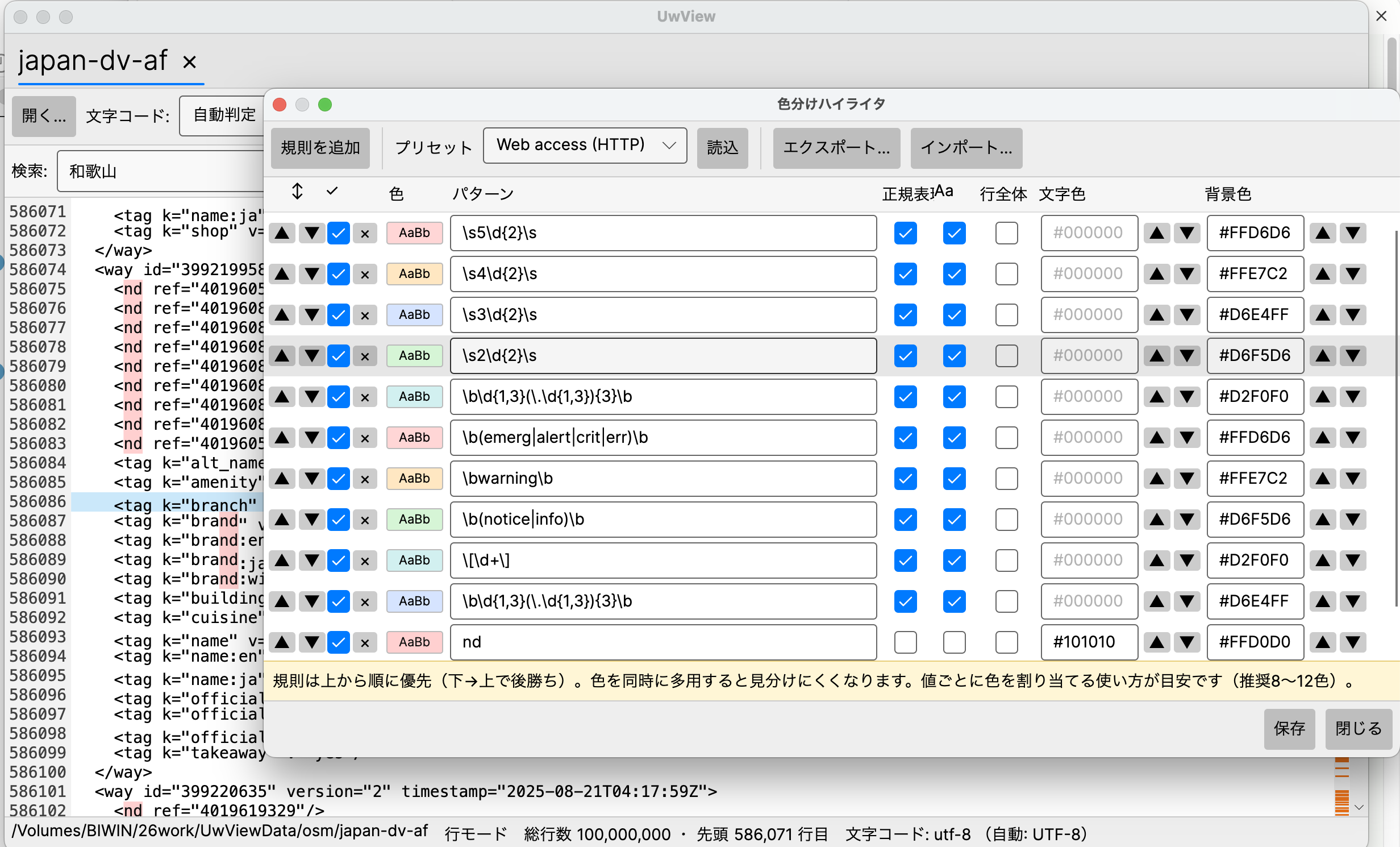
Scroll through the file in this state and you can tell at a glance which time windows have clusters of red (5xx). At the stage where you’re trying to narrow down “which time range should I look at in detail,” following the color clusters visually is often faster than searching.
Step 3: Colorize just the IP you’re curious about, on the spot with a right-click
Suppose you notice the same client IP showing up repeatedly within a cluster of colors. There’s no need to open the search dialog and write a regular expression here. Double-click to select that IP string, then right-click, and you can instantly assign it a different color from the color swatches.
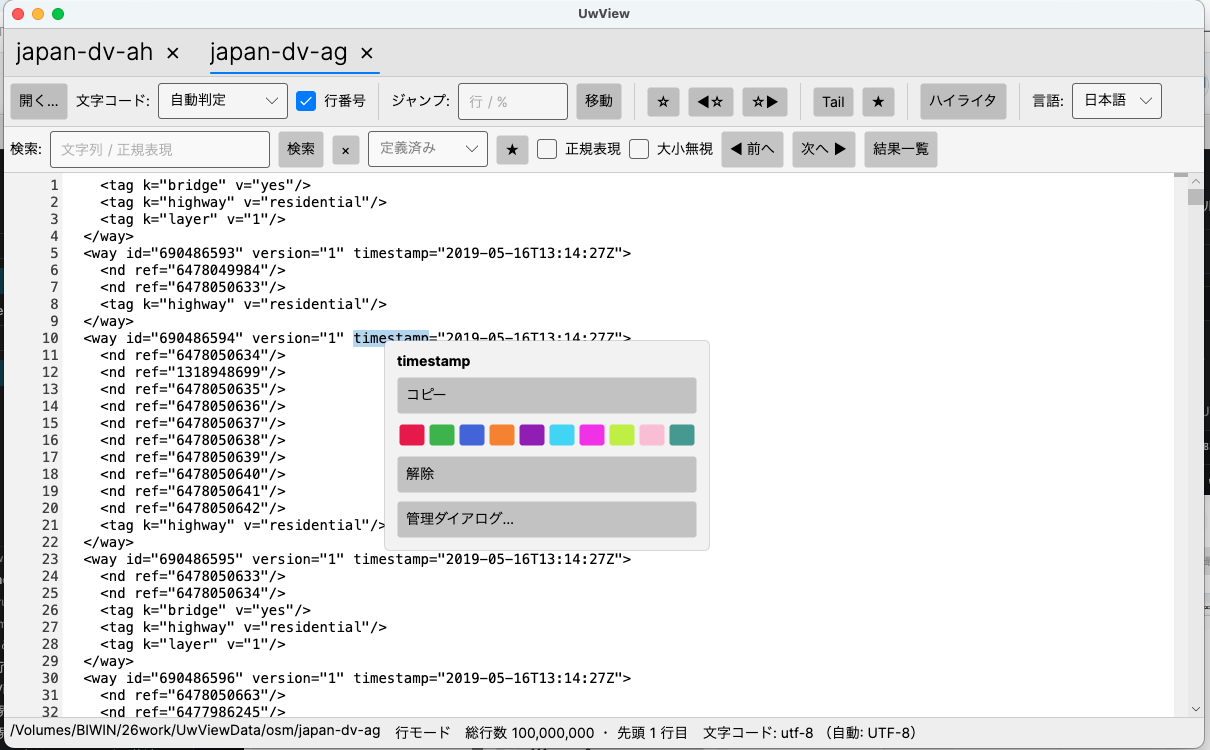
The instant you assign it, every visible occurrence of that same IP on screen gets colored at once. The preset’s status-code colors (red, orange, blue, green) and the IP color you added afterward coexist on the same screen, so “just the 5xx entries this particular IP is involved in” stands out even more.
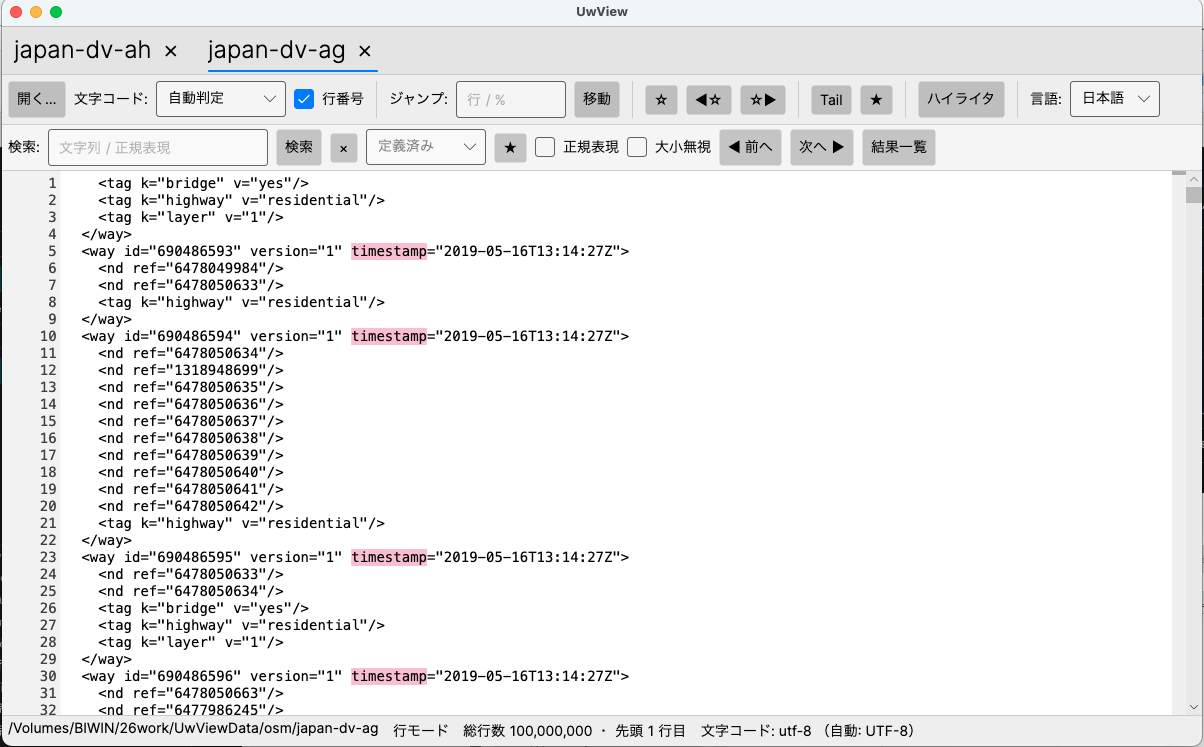
If you save just this IP-specific color rule as a .uwvhl file, you can reuse it next time simply by loading it for a similar investigation. The preset is the “foundation,” and right-click colorizing is the “hit specific to this investigation” — a clear division of roles.
Step 4: Grasp the context with search, and bookmark suspicious lines
Once colors have pointed you toward the likely spots, use search to confirm what’s actually happening. UwView’s search results are listed in a separate popup view, and each hit comes with ±1 line of surrounding context, so you never jump to conclusions from a single line. You can click any entry in the hit list to jump to the corresponding line in the body text, and you can also save the search results themselves to a separate file, with their original line numbers intact.
With UwView Pro, you can display ± N lines of context.
Any line that looks like it could be the starting point of your root-cause investigation gets bookmarked on the spot. Bookmarks can be toggled on and off, you can jump between them forward and backward, and their positions also show up on the minimap (the distribution display next to the scrollbar), so even after scrolling through hundreds of thousands of lines you can get back to “that spot I noticed earlier” without getting lost.
Step 5: Pick up where you left off across days, with session restore
Investigating tens of gigabytes of logs doesn’t always finish in a single day. Close UwView normally, launch it again the next day, and it will ask you whether to restore the tabs you had open last time.
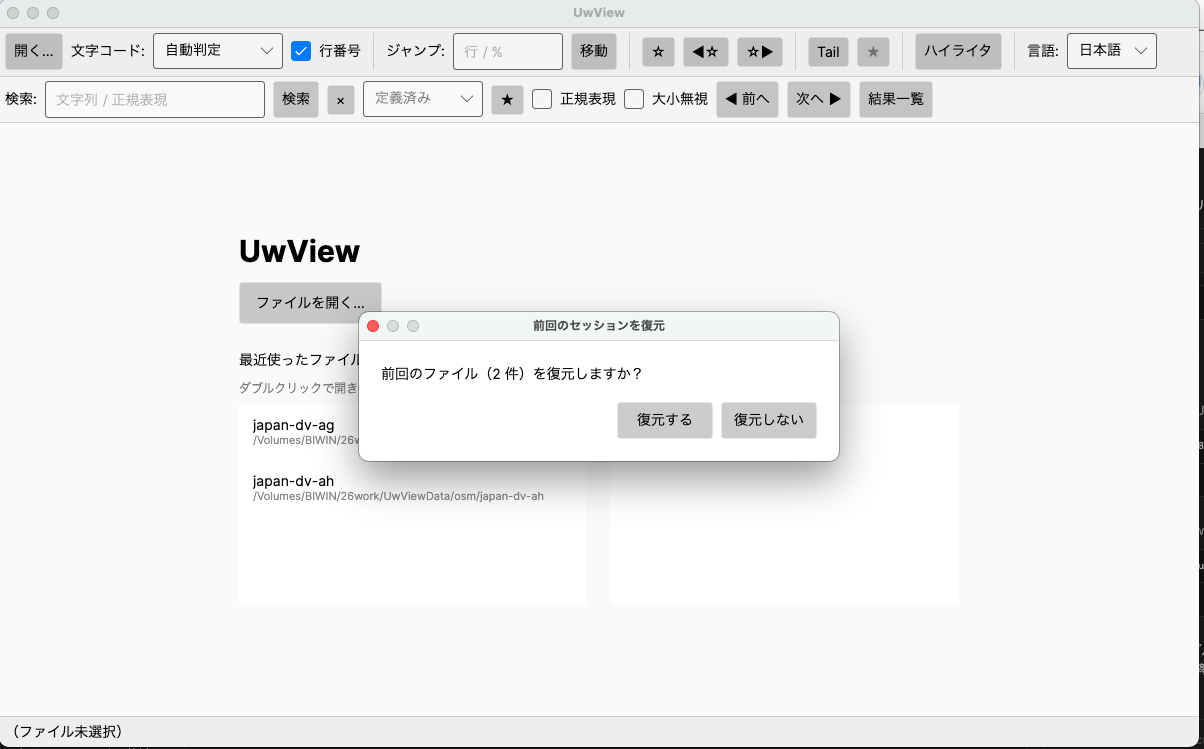
Choose “Restore” and the tab you had open yesterday reopens near your previous scroll position, so you can pick up where you left off without spending time trying to remember how far you’d gotten yesterday.
What It Still Can’t Do (Honestly)
This whole flow works end to end with today’s UwView, but it does have limits. Features such as automatically refreshing search results while Follow (tail) is active, and saving per-tab state (encoding, Follow settings, and which color rules are linked) individually so it can be restored next time, haven’t been implemented yet.
What session restore brings back is limited to “the files that were open in tabs” and “roughly the previous scroll position” — color rules are not carried over once you close the app (you start with a clean slate the next time you open it). Bookmarks, since v1.7.3.6 “Wide Field” (released 29 September 2026), are remembered per file and come back when you open the same file again (update). The rest are listed as candidates on the public roadmap. For the use case of “keep watching in real time and only follow lines that match a condition as they come in,” the current workaround is to re-run the search manually each time.
Separately, the higher-tier UwView Pro offers features such as saving the index as a .uwvz file to make reopening take on the order of tens of milliseconds, searching while still compressed, and archiving at roughly 1/9 the size. The flow described here is entirely doable with the free UVF edition alone, but if you want to “instantly reopen the same log over and over” or “keep a log you’ve finished investigating without deleting it,” that’s where Pro’s direction pays off.
Summary
- The whole sequence — instant open → color-code the big picture with a preset → right-click to instantly colorize a word you’re curious about → confirm context with search while bookmarking → resume the next day with session restore — is achievable purely by combining existing features.
- Paying attention to “how these connect in an actual investigation,” which is hard to see when features are introduced one at a time, reveals that UwView’s features are designed to complement each other rather than stand alone.
- Follow-linked search updates and per-file state restoration are not yet implemented, and are published on the roadmap.
It’s free to use, so if you work with large logs on a regular basis, give this workflow a try.
Related articles
- UwView v1.1 — Reading Huge Logs by Color: We Built a Color-Coding Highlighter with Bundled Presets
- UwView Ver1.1.1 — Instant Colorizing with a Right-Click, Pick Up Where You Left Off When You Reopen
- An Honest Comparison with klogg [Ver1.1.1, Full Edition] — Free UwView and the Higher-Tier Pro, Across Every Category
Sources
- amru195704/UwView (GitHub) https://github.com/amru195704/UwView
- Candidate features for future additions (Roadmap / Issue) https://github.com/amru195704/UwView/issues/1
And if a huge log is eating your disk and you want it compressed for storage while staying searchable at speed, give UwView Pro a look — persistent index, compressed-cache search, and ~1/9 storage make both reopening and searching a step faster (all OS, one-time or monthly).
From the developer: a list of my apps, Kindle books and public projects is on GitHub: amru195704.
A note
The information in this article is provided for reference purposes only, and its accuracy or completeness is not guaranteed. Feature availability reflects each version as of the time it was checked, and may change in future updates. If you notice any errors or inaccuracies, please let us know in the comments and we will review and correct them.

コメント