The reality of log investigation is less about finding and more about discarding.
Search for ERROR, get tens of thousands of hits — and 90% are known noise: health checks, known warnings, batch-job chatter. In CLI land you write:
grep ERROR big.log | grep -v healthcheck | grep -v "known-issue-123" | grep the_real_one
I’ve now brought that grep -v idea into UwView Pro‘s drill-down search: every stage gets a “NOT” (exclude) checkbox, and you can stack include and exclude stages freely.
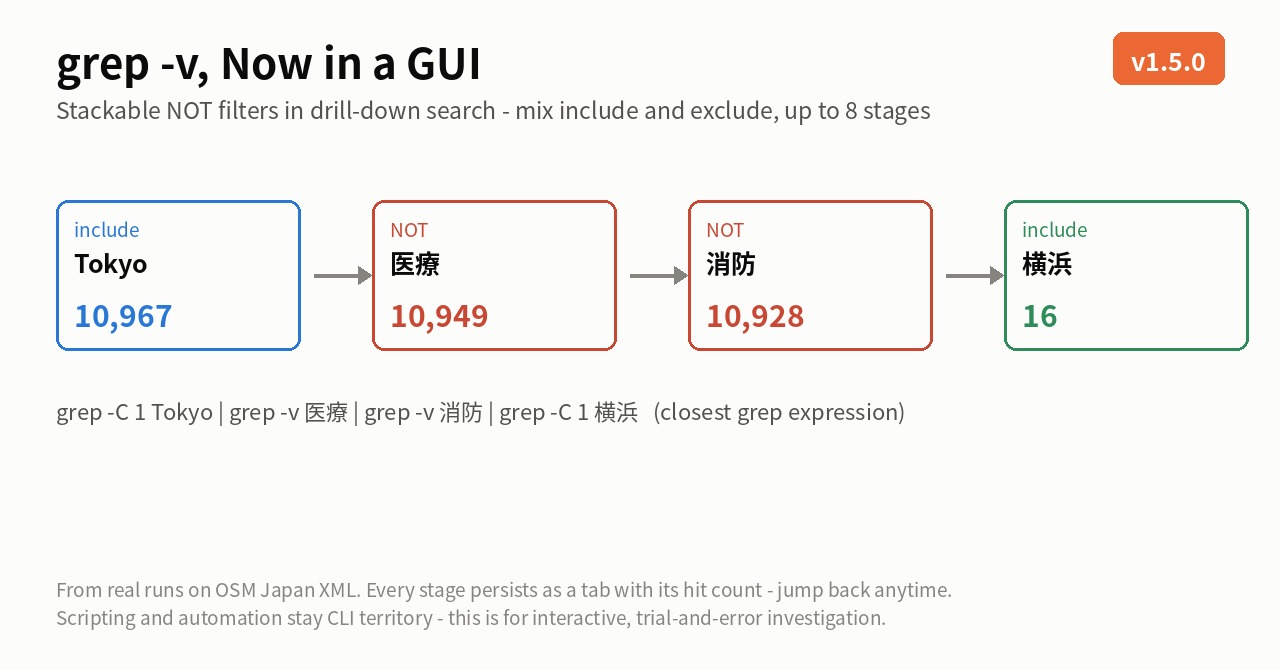
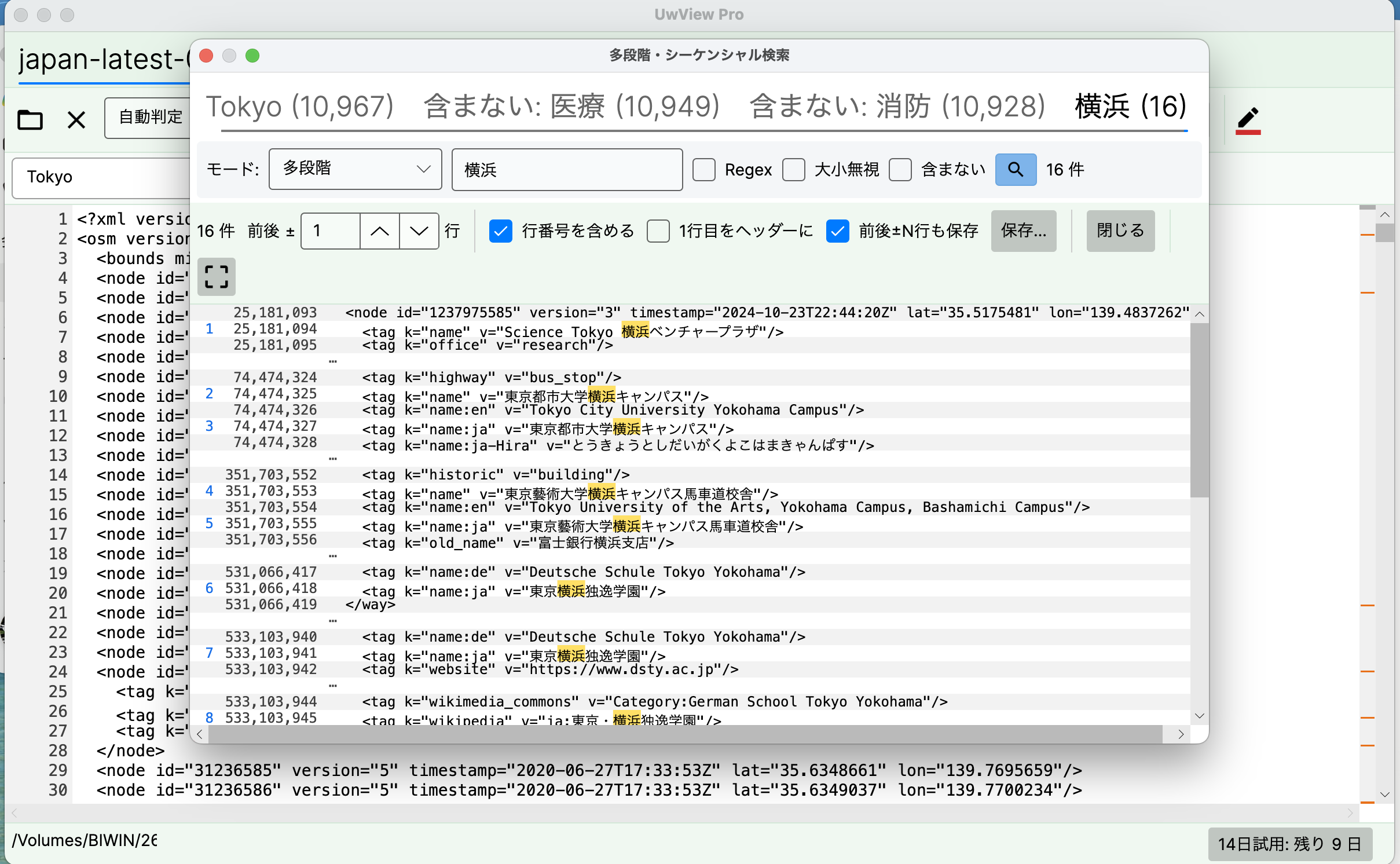
On real data — from 10,967 hits to 16
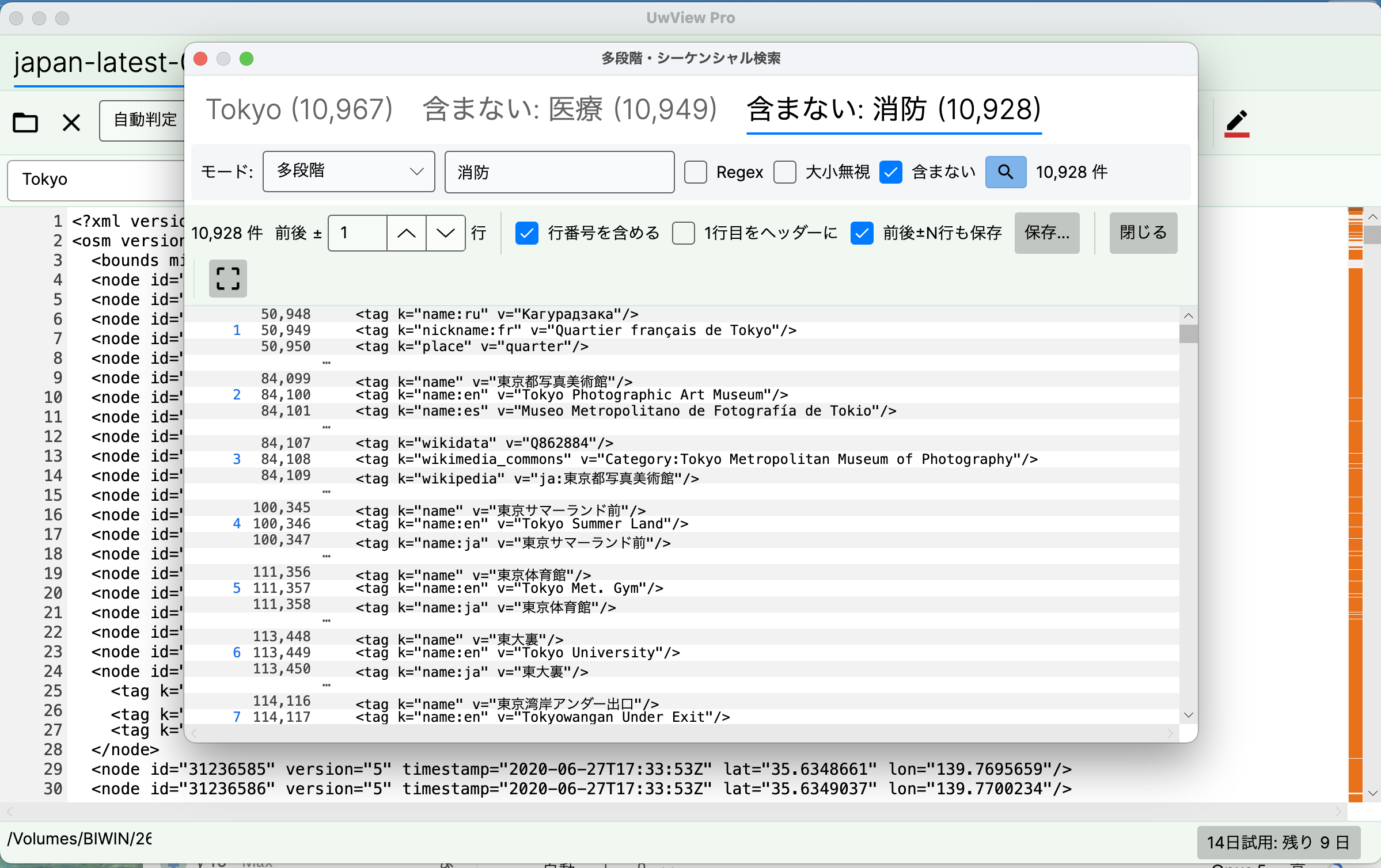
Here it is running on the OpenStreetMap Japan XML (real data — line numbers past 500 million are visible on screen).
- Search
Tokyo— 10,967 hits - Check “NOT” and add
医療(medical) — 10,949 (18 medical lines gone) - Another “NOT” stage,
消防(fire dept.) — 10,928
The closest grep expression is grep -C 1 Tokyo | grep -v 医療 | grep -v 消防 (include stages carry -C 1 for the ±1 line of context — close, but not identical behavior; more below). Now finish with an ordinary include stage, 横浜 (Yokohama):
- Include
横浜— 16 hits
“Lines containing Tokyo, that are neither medical nor fire-department, and relate to Yokohama” — 16 rows out of ten thousand. A refinement close to the four-stage pipe grep -C 1 Tokyo | grep -v 医療 | grep -v 消防 | grep -C 1 横浜, assembled in a GUI.
The CLI-to-GUI mapping (close, not identical)
| CLI | UwView Pro |
|---|---|
grep -C 1 Tokyo big.xml |
Stage 1: Tokyo (with ±1 line of context) |
\| grep -v 医療 |
Stage 2: 医療 + “NOT” checked |
\| grep -v 消防 |
Stage 3: 消防 + “NOT” checked |
\| grep -C 1 横浜 |
Stage 4: 横浜 (ordinary include, with ±1 line of context) |
grep -C 1 |
±N lines of context (per stage) |
> hits.txt |
the Save… button (options below) |
Note: this mapping shows similar behavior, not strict equivalence. Drill-down refines blocks of ±N context lines, while a grep pipe processes a line stream, so edge cases (especially the handling of context lines) can differ. Exclude stages carry no -C, since combining -v with -C is meaningless in grep.
What a pipe can’t do — the stages persist
A CLI pipe is one-way. What grep -v discards flows away, and “wait, did I cut too much?” means retyping from the start.
In UwView Pro, every stage stays as a tab across the top of the window (Tokyo (10,967) → NOT: 医療 (10,949) → … in the screenshot). Click any stage to return to that point. What you discarded, in what order, with hit counts — the refinement path becomes the investigation record. Up to 8 stages, include and exclude freely mixed.
And it isn’t only the tabs that persist. Right-click a row in the result list and History (drill-down path) opens.
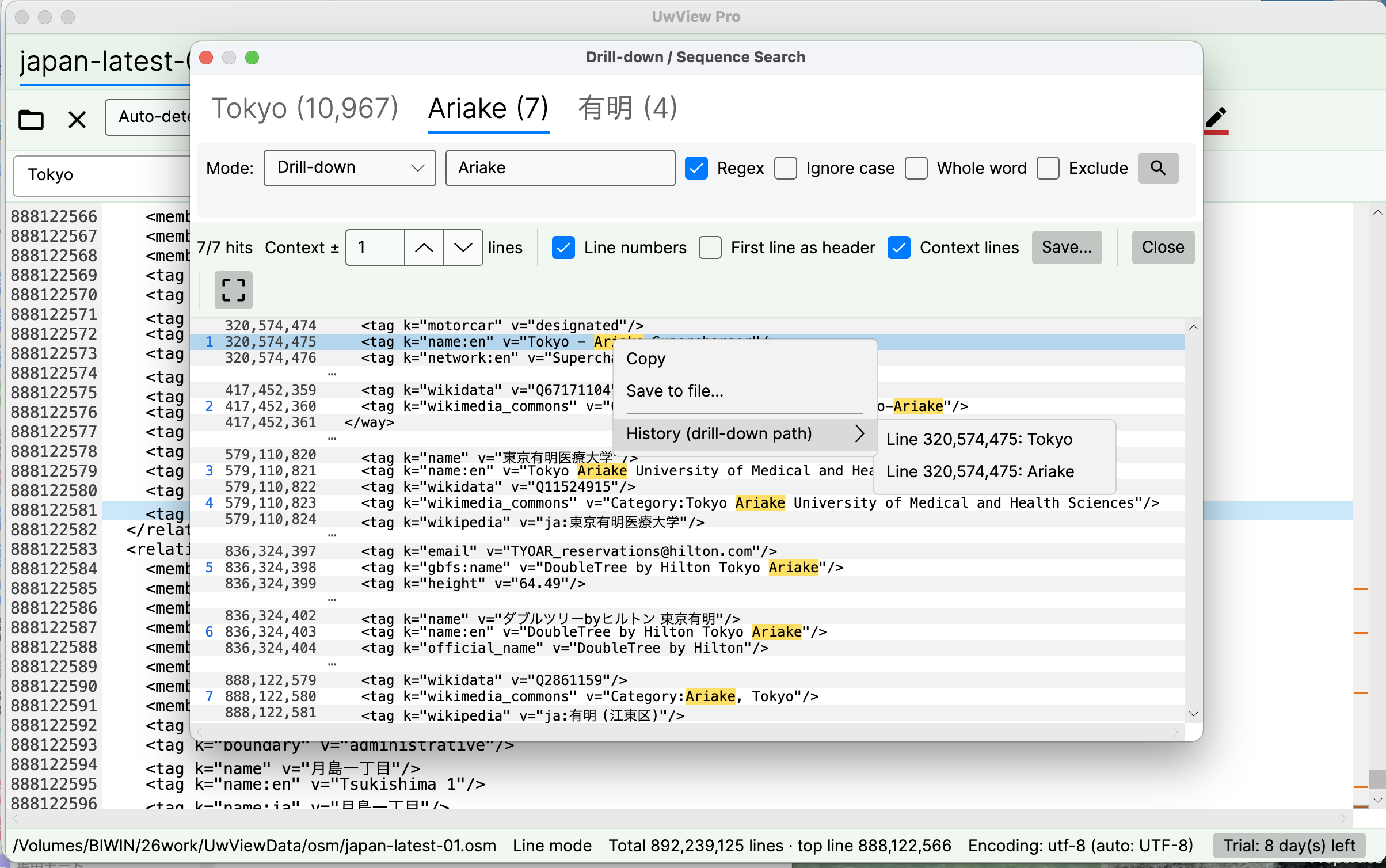
The row currently on screen tells you which term caught it, at which original line number, stage by stage — and you can jump into the body from any of them. (The screenshot shows a different refinement: Tokyo (10,967) → Ariake (7) → 有明 (4).)
A grep -v pipe loses exactly this. Adding grep -n to a later stage counts within the block that reached it, not line 320,574,475 of the original. Every extra exclusion means re-reading gigabytes with the line-number thread already cut. Knowing what you discarded and where each row came from is what tabs plus history buy you.
Export got stronger too — line numbers, headers, ±N context
Also visible in the screenshots: new options when saving results to a file.
- Include line numbers — each row keeps its position in the original
- Use the first line as a header — the CSV/TSV header row is prepended to the output, so an extract of matching rows opens cleanly in the next tool
- Save ±N lines of context — write out the surroundings, not just the hits
“Pull just the rows I need from a huge CSV, with the header” is now two actions: search, save.
Full disclosure
- The NOT filter and the export options are available from UwView Pro v1.5.0. The screenshots are from a build earlier than v1.5.0
- More CLI-flavored features are on the way
- The screenshots are the developer’s own runs (macOS, real OSM Japan XML). Hit counts are specific to this file and these terms
- Scripting, automation and scheduled jobs remain CLI territory. This article is about the GUI, but since v1.6.0 there is a CLI too —
uvp(Pro) anduvf(free) — with-v,-iand-Eand grep’s exit codes (0 / 1 / 2), so a cron job or a pipeline can use those. For a one-off search on a file with no index yet, as I’ve measured, grep or ripgrep is still faster - The CLI mapping is an illustration of similar behavior, not strict equivalence (context lines are handled differently)
- Where this shines is interactive investigation — when you don’t yet know what to discard. Which, in incident work, is most of the time
The tool used
UwView Pro is on sale (Windows, macOS, Linux — one license covers all three; one-time or monthly, with a 14-day free trial — editing features included). Drill-down search, including “NOT” stages, is a Pro feature.
Links
- From 90,000 Hits to 54 in Two Refinements — Drill-Down Search — drill-down before it learned to say “not”
- Sequence Search — Finding Places Where Terms Appear in Order
- How to Open and Search a 50GB Log File on a 16GB PC
- Is ripgrep Really the Fastest on a 51 GB Single File?
From the developer: a list of my apps, Kindle books and public projects is on GitHub: amru195704.
A note
The information in this article is provided for reference purposes only, and we do not guarantee its accuracy or completeness. All measurements reflect the specific environment described above and may differ on other hardware. If you notice any errors or inaccuracies, please let us know in the comments and we will review and correct them.