[Update, 16 October 2026] Speed today — 50 GB is about the same; even at 3 GB, the gap now opens from the second question
The
uvpvs ripgrep figures near the end of this article were measured with v1.6.6.1 (September 2026) on a Mac (external USB SSD). The current version is v1.9.0 “Full Spectrum”, re-measured on the same machine and disk.
ripgrep ÷ uvf / uvp In this article (then) Today 50 GB, 1st question ( uvp, incl. index build)59.0 s vs 54.9–55.8 s (6–7% slower) 58.81 s vs 64.68 s (1.10×, on par) 50 GB, 2nd question ( uvp)8.4× (6.6 s) 8.6–10.9× (6.45 s) 3 GB ( uvp)on par 1st question 1/1.3 (on par); seven search patterns 3.44× Free uvfon par at every size still on par (1.08× at both 3 GB and 10 GB) At 50 GB,
uvp‘s own times have barely changed; the ratios moved because ripgrep varies between 55 and 70 s from run to run. What changed is the smaller files: ask several questions of the same file anduvpis 3.44× ripgrep even at 3 GB (3.55× at 10 GB). 50 GB figures: v1.7.3.6.9 (4 October 2026); 3 GB / 10 GB: v1.9.0 (14 October 2026). Details: Benchmarks and the v1.9.0 “Full Spectrum” article.
Someone hands you a log with “take a look at this” — and it’s 8 GB. Or the CSV you just exported turns out to be 30 million rows.
What people try first is almost always the same. Open it in Notepad. Load it into Excel. Drag it into VS Code. And when none of that works, split the file. Each of these dead-ends for a different reason.
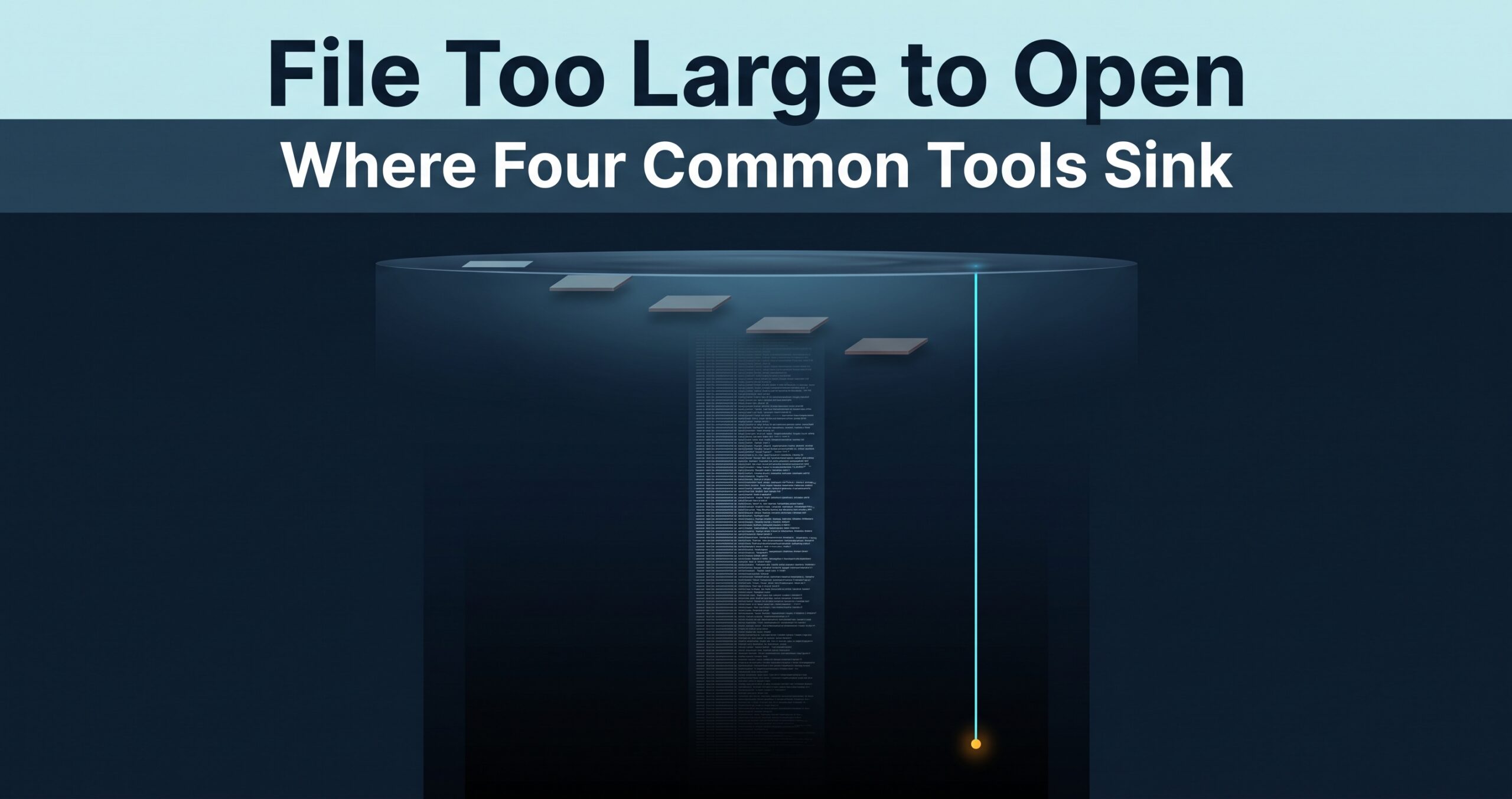
This article walks through why and where each of the four standard moves sinks. This is not a story about “bad tools”. Each of them is good at its own job — it’s just that investigating a huge file isn’t that job.
1. Notepad — it ends at “File is too large”
The situation
You double-click the file. The cursor spins for a while, then either “This file is too large” appears or the app simply stops responding. Task Manager shows memory being eaten away.
Why it happens
Notepad is a tool for editing. To make editing possible, the entire text has to sit in memory, ready for insertion and deletion at any position. In other words, “open” is effectively synonymous with “read everything”.
Notepad on Windows 11 handles larger files better than it used to, but this design premise hasn’t changed. Opening an 8 GB log demands 8 GB of memory (in practice more, because of the internal representation). Even on a 32 GB machine, a 50 GB file physically cannot fit.
What generic tools can do, and where that stops
If you only need the beginning, PowerShell’s Get-Content -TotalCount 100 slices off the head; -Tail gives you the end. There are real cases where that’s enough.
The limit shows up when the part you need is in the middle. In an incident investigation you don’t want “the first 100 lines” — you want “the lines around the moment the error occurred”, and you don’t know in advance where in the file that is. A tool that can only peek at the head and the tail can’t take you there.
2. Excel — the 1,048,576-row wall, and the traps in front of it
The situation
You open the CSV in Excel and it says the dataset is too large. Or it says nothing, finishes loading, and you go on to run your totals with a vague sense of relief.
Why it happens
One Excel sheet caps out at 1,048,576 rows × 16,384 columns. That ceiling has been part of the spec since 2007, and no setting can raise it. Feed it a 30-million-row log and it simply doesn’t fit.
The nasty part is that you can fail to notice that it didn’t fit. Even when the import stops partway, the sheet still shows a million rows of data. It looks normal. If you then report “there were 3 errors”, every occurrence in the remaining 29 million rows silently disappears from your report. In practice, this quiet truncation is scarier than the row limit itself.
There are traps even before the wall. A document number like 00123 gets detected as a number and becomes 123. A string that looks like 2026-08-26 gets converted to a date serial value. Your log IDs and timestamps no longer match the original file.
What generic tools can do, and where that stops
With Power Query (Get & Transform), you can load data past the million-row limit into the data model. If all you need is aggregation, that’s the right answer. The automatic type conversion can also be stopped by explicitly choosing “Text” at import time.
The limit is that Power Query is a tool for aggregating, not for viewing. “Show me the ten lines around this timestamp, somewhere near row 30 million” — the most common request of all — is one an aggregation engine doesn’t answer. And if you’re trying to drag a huge log into Excel in the first place, most of the time what you actually want is to look at it, not to total it.
3. VS Code — it opens, and the features fall away
The situation
You drag the file into the editor: “The file is too large to display”. You find the setting, raise the limit, and now it opens — but syntax highlighting is gone. You run a search and the window freezes.
Why it happens
VS Code has staged safety mechanisms. By default, somewhere past a few tens of megabytes, Large File Optimizations kick in: syntax highlighting, folding, and some language features are automatically disabled. Grow the file further and it refuses to display at all. The exact thresholds move with versions and settings (editor.largeFileOptimizations, files.maxMemoryForLargeFilesMB, etc.), so the precise numbers depend on your environment.
Why drop the features? Because almost everything an editor offers — parsing, folding, symbol lists, diffs — stands on understanding the whole file as a structure. Understanding requires scanning it all. For a file whose scan never finishes, the only option is to switch the features off.
So even if you raise the limits and get a multi-GB file open in VS Code, what you have is “an editor with all its features turned off”. You’re using it with its strengths thrown away.
What generic tools can do, and where that stops
The natural answer here is division of labor. Things you edit (config files, source code, a few thousand extracted lines) go to the editor. Things you only read (raw logs, dumps, exports) go to a different tool.
The limit: if you don’t have that different tool, you end up forcing the editor to keep struggling. Division of labor only works when there’s somewhere to divide the labor to.
4. Splitting — the standard workaround that backfires during investigation
The situation
You cut the file into 100 pieces with split -l 1000000 huge.log part_, or with a GUI splitter. Now they open — problem solved, you think.
(We covered “opening without splitting” in How to investigate 10–50 GB logs on Windows without splitting them; here we go one step further and look at how the workflow after splitting falls apart.)
Why it happens
Splitting does remove the cause of “can’t open” (the file is big). But at the same time it breaks several premises the investigation depends on.
Line numbers no longer match the original. Line 3,412 of part_ab is line 1,003,412 of the original. Write “error at line 3,412” in your report, and whoever reads it will look at that position in the original and frown. Adding offsets by hand every time is a workflow that will fail — reliably — as the number of parts grows.
Boundaries cut records in half. A stack trace is one unit of meaning spread over many lines. Pretty-printed JSON logs put one record across multiple lines too. When the split point lands in the middle, a Caused by: chain ends up in two files, and anyone who sees only one of them misreads the cause.
Search goes back to manual labor. You can sweep across parts with grep ERROR part_*. But the moment you want the surrounding context, you’re checking which file and which line, then reopening that file. After bouncing between 50 files, you no longer remember which one held the line you saw a moment ago.
Disk usage doubles. Split an 8 GB log and you’ve created 8 GB of copies. Delete the original and you’ve lost the original; keep it and you’re at 16 GB. Running out of disk mid-investigation is exactly the kind of accident you want to avoid.
What generic tools can do, and where that stops
Line-number drift can be partially compensated with tricks like awk 'FNR==1{offset+=prev} ...'. The boundary problem can be eased by giving csplit a record-separator pattern.
The limit is that these tricks are throwaway code, rewritten for every investigation. The log format changes, you rewrite them. In the middle of an urgent incident, you’re writing preparation for the investigation instead of investigating. Splitting solves “can’t open” at the cost of the premise that you’re working with the original, intact — and that premise was precisely what made the investigation work.
What the four have in common
Lined up side by side, they sink in different places but for one converging reason.
| Approach | Where it sinks | The underlying premise |
|---|---|---|
| Notepad | Falls over before opening | Loads everything into memory, for editing |
| Excel | 1,048,576 rows / silent truncation | Holds every row in a sheet, for spreadsheet work |
| VS Code | Opens, but features disappear | Scans the whole file, for syntax understanding |
| Splitting | Opens, but the investigation breaks | Sacrifices the continuity of the original |
Every one of them is designed to “become usable only after it can handle the whole thing“. That premise is correct as long as the file fits in memory — and collapses the moment it doesn’t.
Flip it around, and what investigating huge files actually requires is being able to look before the whole is processed — head, tail, and middle, scrollable and searchable from the instant the file opens, with the original kept as a single file. None of the four above is designed that way. That’s not a defect; it’s a design chosen for a different purpose. Which is why, when the purpose differs, switching tools is the fast path.
The tool I use
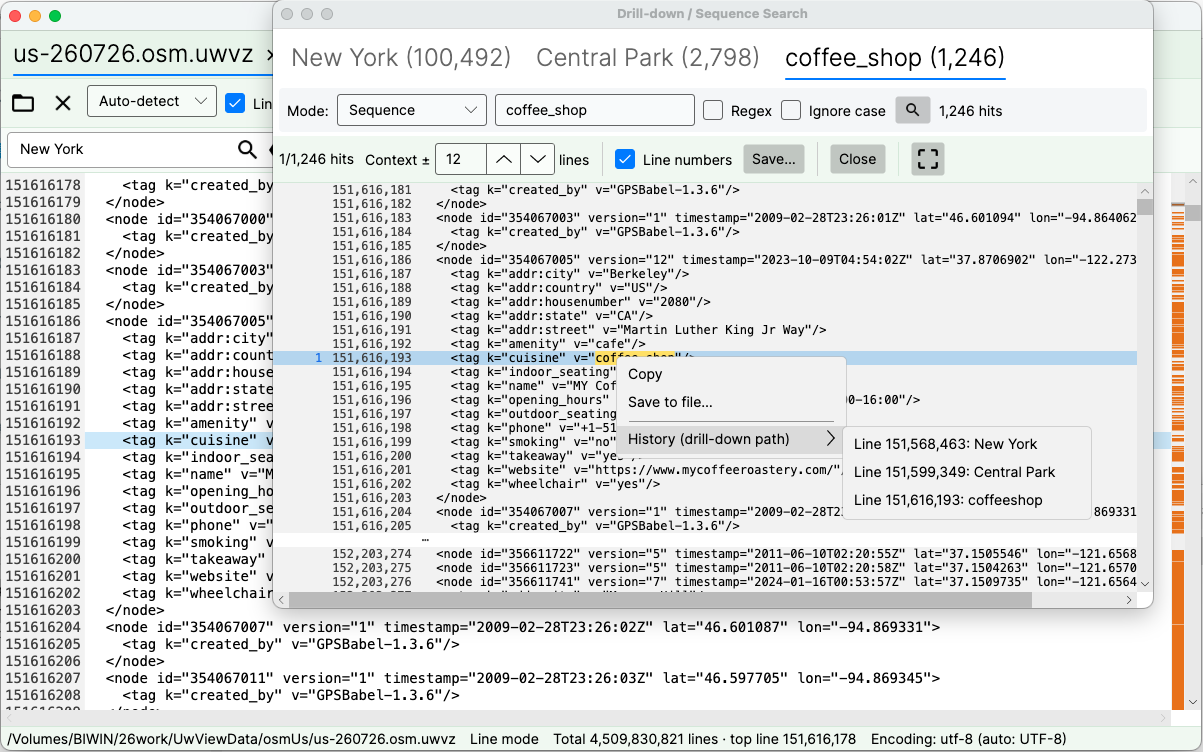
UwView (free), which I develop, is a viewer built precisely by dropping that premise. Even with huge text files it displays, scrolls, and searches the whole file from the moment it opens; the index is built in the background, and line numbers appear when it completes (most other viewers show only the head until indexing finishes). No splitting — the original stays a single file. As one measured example: with a 47.73 GB / ~892-million-line text file (USB external SSD, 32 GB-RAM machine), jumping to the end and searching worked immediately after opening (results vary by environment). And if a huge log is hogging your storage and you want it compressed for keeping — and searched even faster — there’s UwView Pro: persistent index, compressed-cache search, storage at roughly 1/9 size, and faster reopen and search across the board (from the second time on, files open instantly with line numbers; all OS supported; one-time or monthly). The monthly plan includes a one-month free period via the payment service Polar.
The same things, from the command line
v1.6.0 added a uvp command (and uvf for the free build). It uses the same .uwvz as the GUI, so an index built from the shell is already there when you open the file in the app. Mapped onto this article’s four parts:
# Part 1: too big for Notepad, but a word still comes back with line numbers
uvp huge.log 'OutOfMemoryError'

# Part 2: past the 1,048,576-row wall, read just around the value you care about
uvp huge.csv 'ORDER-99821' -C 5

# Part 3: regex works as written; keep the result compressed
uvp huge.log -E 'ERROR|FATAL' -out errors.txt.gz

# Part 4: no splitting. Narrow with a second word, then continue in the GUI
uvp huge.log 'timeout' 'retry' -open
Exit codes are grep’s — 0 found, 1 not found — plus 2 when a limit is hit and the output is cut off (no limit by default; only when you set one with -limit N). The check you used to wrap around a split script works the same way, without cutting the file.
Stated honestly: on the first question uvp is a little slower than ripgrep — it builds its .uwvz (a compressed cache plus index) first, 59.0 s against 54.9–55.8 s at 50 GB, 6–7%. In v1.6.6.1 it searches while building the index instead of re-reading it afterwards, which cut 6.7 s. It starts paying from the second question: the same 50 GB search takes 6.6 s against ripgrep’s 55–57 s — 8.4×. On a small file such as 3 GB the two are level, because an index has little to earn there. The free uvf is level with ripgrep at every size (the measurements; Mac M4, external USB SSD, OpenStreetMap XML — one setup, results vary).
Links
- Investigating huge logs without splitting them: https://uvp.y42u.net/en/blog/uwview-huge-log-cannot-open-en/
- Measured comparison on a 48 GB file (16 GB-RAM laptop): https://uvp.y42u.net/en/blog/uwview-emeditor-48gb-comparison-en/
- We shipped a
uvpcommand (measured against ripgrep): https://uvp.y42u.net/en/blog/uvp-cli-release-vs-ripgrep-en/ - Source code (GitHub): https://github.com/amru195704/UwView
From the developer: My apps, Kindle books, and public projects are listed at GitHub: amru195704.
A note
The information in this article is provided for reference and is not guaranteed to be accurate or complete. Numbers are measurements in a specific environment and will vary with yours. Tool specifications and limits change with versions and settings. If you find an error or inaccuracy, please point it out in the comments and it will be corrected after verification.