UwView is a viewer for huge logs and text files on Windows, macOS and Linux. It reads without loading the file into memory, so 10 GB, 50 GB and 258 GB files open right away, and it searches inside seven compressed formats (gz, zst and others) and Word, Excel and PDF files. There is a free edition (CLI uvf), the paid UwView Pro (uvp), which indexes a file so the second search onward is faster, and the sister tool UwDiff (uvd) for comparing two files or folders.
grep ERROR big.log | grep -v healthcheck | grep timeout — everyone who reads logs types a pipeline like this. How do you build it on screen? How do you hand what the command line found over to a viewer? How do you search a dozen files with one command? This site has published 16 articles on narrowing down, on the command line (CLI) and on the screen (GUI).
This page collects the answers from those 16 articles in one place. Every hit count and every second was measured by the developer, so please read them with that in mind. Where the GUI is the wrong tool, and where ripgrep still wins, we say so.
- The short answer: when you do not yet know what to throw away, drill-down search on screen is the better fit. One-off searches, scripts and scheduled jobs belong to the command line. Today you can move between the two inside the same product
- 1. Putting the pipeline on screen — drill-down search
- 2. grep’s options and uniq -c in the GUI — the cheat sheet
- 3. Search on the command line, read on screen — -open and a single read
- 4. Many files with one command — bundles, ignore rules, output and JSON
- 5. Reading on screen — moving between the list and the file
- 6. When to use the command line, when to use the screen
- Where we lose, and where it is a tie
- Read each article
- Links
The short answer: when you do not yet know what to throw away, drill-down search on screen is the better fit. One-off searches, scripts and scheduled jobs belong to the command line. Today you can move between the two inside the same product
- Every stage of the pipeline stays on screen as a tab with its hit count. UwView Pro’s drill-down search stacks
grep A | grep B | grep Cup to eight stages deep, and any stage is one click away. The original line numbers survive. - grep’s main options are now in the GUI.
-v(NOT),-w(whole word),-i(ignore case),-E(regex),-C N(context lines), and Tally, which is close tosort | uniq -c. There is no awk-style arithmetic. - The command line and the screen share a single read.
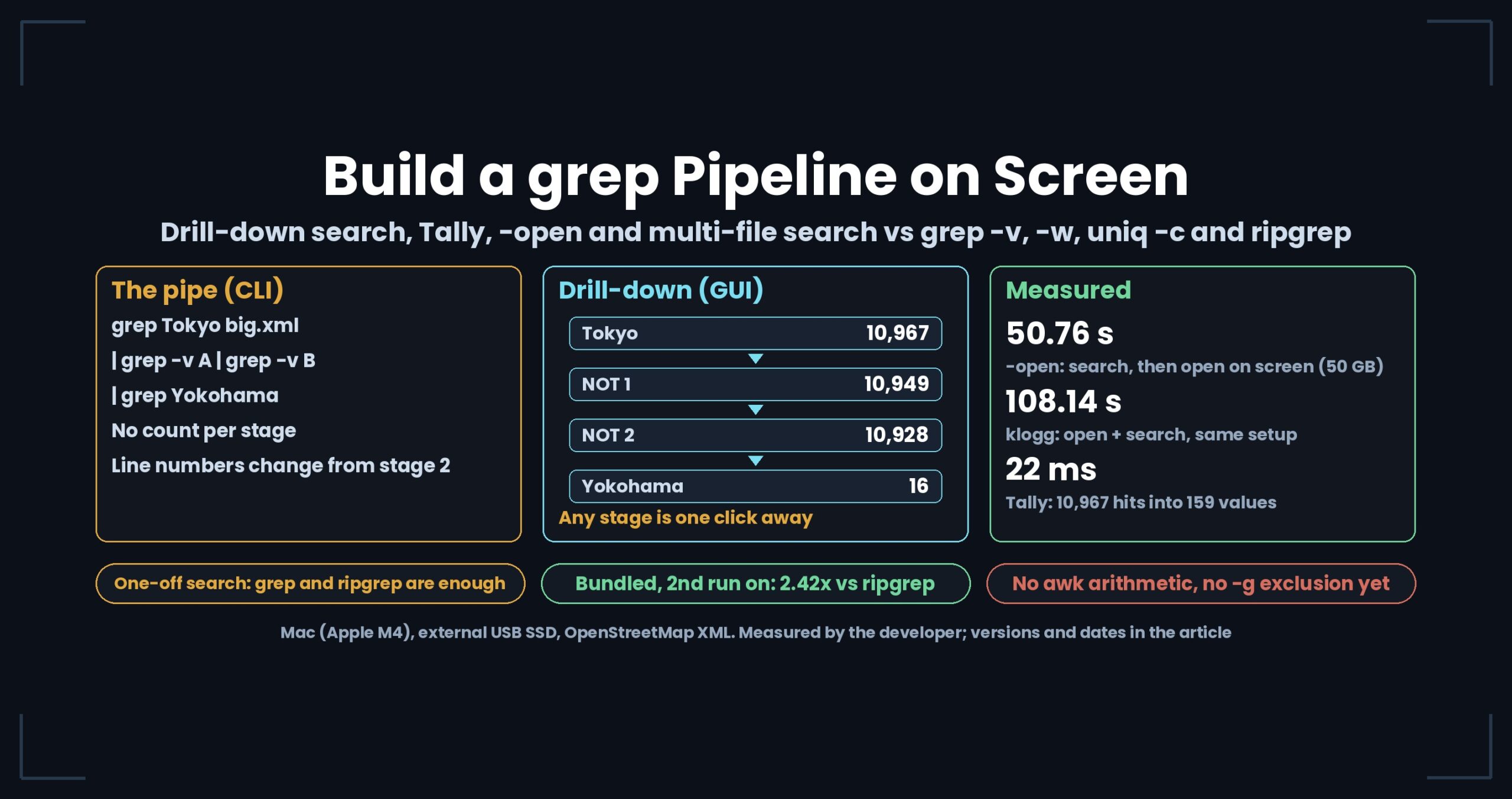
uvf … -openhands its results to the GUI through one temp file, and “search 50 GB and read the hits on screen” takes 50.76 s (klogg’s open plus search: 108.14 s). - For a one-off search, grep and ripgrep are enough. On a file with no index yet, grep or ripgrep can be faster. The gap appears when you ask the same file more than one question.
1. Putting the pipeline on screen — drill-down search
The classic way to read a log is to chain grep through pipes. UwView Pro’s drill-down search builds that pipeline as tabs. Run a normal search and the result list appears; type the next term into the refine bar above it and it searches only within ±N lines of the previous results (the drill-down article).
| Stages | Hits | Source |
|---|---|---|
New York → Central Park → coffee_shop (entire US OpenStreetMap, 258.68 GB, 4,509,830,821 lines) |
100,492 → 226 → 3 | Drill-down search |
Tokyo → NOT 医療 → NOT 消防 → 横浜 (OpenStreetMap Japan, 892,239,125 lines) |
10,967 → 10,949 → 10,928 → 16 | The grep -v article |
Tokyo → whole-word Ariake → 有明 |
10,967 → 7 → 4 | The grep -w article |
The first search for “New York” took 30.28 s on the US file, read straight from its compressed .uwvz archive. Two refinements later, the first of the three hits lands on a coffee shop at Central Park South. The three terms never have to share a line: drill-down finds places where they occur near each other, which is different from and/or inside one line.
Three things a pipe loses and the tabs keep:
| A grep pipeline | Drill-down search | |
|---|---|---|
| Hit count per stage | Only the final result | Each tab reads term (count) |
| Original line number | From stage 2 on, grep -n counts inside the block that reached it |
Still 320,574,475 — and you can jump there |
| Changing a condition | Rewrite the pipe and read the original from the start again | Click the tab you want to go back to |
Right-click a result row and History (drill-down path) shows which term caught that row, at which original line, stage by stage. The investigation’s conditions become part of the record.
There is also Sequence Search, which finds order: only places where w1 → w2 → w3 appear in that sequence, such as “login → timeout → restart”. On the same US file, New York (100,492) → Central Park (2,798) → coffee_shop (1,246). Compare that with drill-down on the same three words (100,492 → 226 → 3) (the Sequence Search article).
2. grep’s options and uniq -c in the GUI — the cheat sheet
Over several releases we brought grep’s ideas into the GUI one at a time. Here is what behaves alike (the CLI-to-GUI cheat sheet). These are close equivalents, not exact ones. Drill-down narrows by ±N-line context blocks, while a grep pipe streams lines, so edge cases can differ.
| CLI | UwView Pro on screen |
|---|---|
grep PATTERN big.log |
Search (stage 1) |
grep -i |
“Ignore case” checkbox |
grep -E |
“Regex” checkbox |
grep -w |
“Whole word” checkbox |
grep -v |
“NOT” checkbox (stage 2 onward) |
grep -C N |
±N context lines |
grep A \| grep B \| grep C |
Drill-down search (up to 8 stages) |
... \| sort \| uniq -c \| sort -rn |
Tally (frequency ranking on the regex’s first capture group) |
> hits.txt |
Save… (line numbers, first line as header, ±N context) |
Tally cuts a value out of each hit line and ranks the values. Running k="([^"]+)" over the 10,967 Tokyo hits gave 159 distinct values in 22 ms; first place was name:en with 4,848 (44.2%). The 22 ms is the scan over the 10,967 hit lines, not over all 892 million. On a big stage, 1.39 million hits on the 48 GB file took 61.5 s (the uniq -c article). Click a row in the ranking to drill into that value.
Values from earlier articles, all on the same 48 GB file (the cheat sheet, September 2026):
| Operation | Measured |
|---|---|
| Full-text search | 54.7 s first run (while indexing), ~14 s after. For reference: grep 64.64 s, ripgrep 71.49 s — every time |
| Replace-all (Edit Upgrade) | 47.0 s for two replacements |
| Save | 0 s to stop mid-way (the diff already exists); 1–2 minutes to write the final text |
Values re-measured on the current release (v1.9.0, October 14, 2026, Mac) are added at the top of the cheat sheet: Tally runs at 4.2–4.9× rg + sort + uniq (3 GB and 10 GB), and the GUI search runs at about the same speed as the uvp command.
3. Search on the command line, read on screen — -open and a single read
Since v1.6.0 there is a command line that runs the same search as the GUI: uvf (free) and uvp (paid), with grep’s exit codes. uvf huge.log 'ERROR' -open opens what the command found on screen.
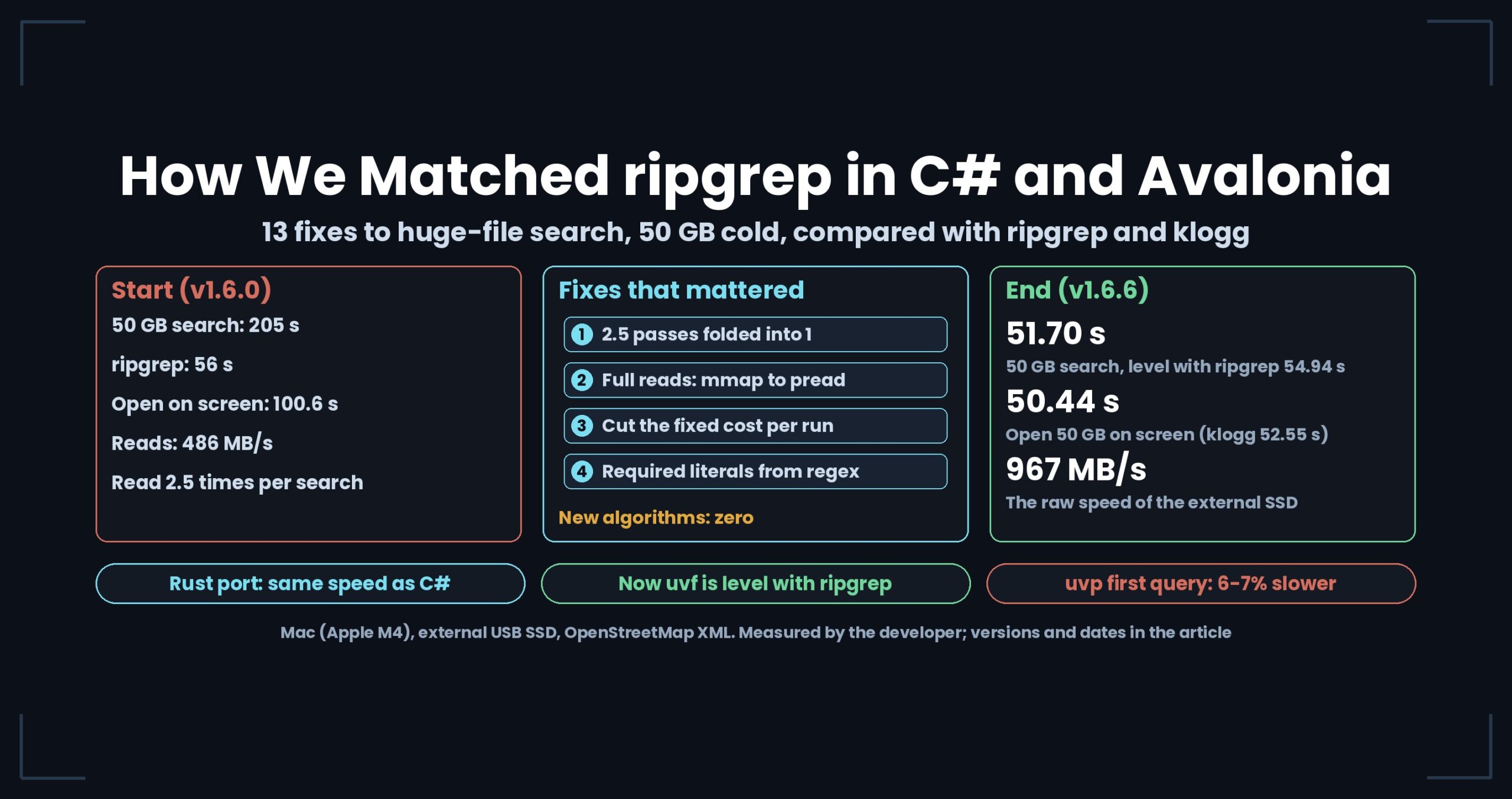
At first, the command handed the GUI only the search term. The GUI started up and searched again, so the same 50 GB was read twice. We changed it to pass the hit positions and the index’s markers through one temp file, so the file is read once (Part 6 of the improvement series).
Cold (after sudo purge), v1.6.6, Mac M4, 32 GB memory, external USB SSD, OpenStreetMap XML:
| 3 GB (s) | 10 GB (s) | 50 GB (s) | |
|---|---|---|---|
uvf search only |
3.27 | 10.40 | 51.70 |
uvf … -open (search and open on screen) |
3.40 | 10.42 | 50.76 |
| klogg 24.11.0 (open + search) | 4.21 | 22.73 | 108.14 |
| vs klogg | 1.24× (on par) | 2.18× | 2.13× |
The point is how close the first two rows are: opening the GUI and listing the hits with line numbers adds almost nothing to the search itself. At 3 GB the 1.24× is under 1.5×, so we call it on par.
4. Many files with one command — bundles, ignore rules, output and JSON
v1.7 (Wide Field) widened what one command can cover. The numbers are from a Mac (Apple M4, 10 cores), 32 GB memory, external USB SSD and OpenStreetMap XML, against ripgrep.
| What we did | ripgrep (s) | UwView (s) | Result | Source |
|---|---|---|---|---|
12 mixed plain and gz files, first run (uvp) |
25.57 | 41.45 | 1.62× behind ripgrep | Wide Field Part 1 |
Same, second run (uvp) |
25.22 | 10.43 | 2.42× ahead | same |
5 plain files, second run (uvp) |
0.37 | 0.55 | Never catches up | same |
All three sets (uvf) |
— | — | On par (1.00–1.31) | same |
| Write 50 GB of hits as gz (index present) | 117.20 (rg \| gzip) |
11.89 | 9.86× | Wide Field Part 10 |
| Write 3 GB of hits as gz (hot) | 0.33 | 0.31 | On par | same |
| 50 GB including the first, index-building run | 66.01 | 61.17 | On par (1.08×) | same |
Part 1 re-measured the released v1.7.3.6 on October 1, 2026; Part 10 comes from the v1.7.3.6 integration test on September 29, 2026. With the 12 mixed files, two runs together still do not catch up (51.88 s vs 50.79 s); uvp pulls ahead from the third run.
We also matched things other than speed:
- Ignore rules:
.ignoreand.gitignorefollow the same rules as ripgrep 15, and 43 checks againstrg --filesagree on Mac, Linux and Windows. Ignore rules are not about speed; they make the same command return the same hit count (Wide Field Part 7). - File patterns: multiple files go into one quoted argument, as in
uvf 'logs/*.log,err/*.log' ERROR, because that string becomes the name of the bundled index. After five fixes, 36 checks agree on both Mac and Linux (Wide Field Part 8). - JSON output and thread count:
--jsonwrites JSON Lines with three keys,file,nandline.--tunemeasures the machine and recommends a thread count; on the Mac it went from 6.33 GB/s with one thread to 16.41 GB/s with eight (Wide Field Part 11).
5. Reading on screen — moving between the list and the file
After searching comes reading. Even in the free UwView, results appear in a separate popup; double-click a row and the main view scrolls to that line. The popup stays open, so you can go list → file → list as often as you like (the filter popup article).
| Free UwView | UwView Pro | |
|---|---|---|
| Jump from the list to the line | Yes | Yes |
| Save hit lines (optionally with context) | Yes | Yes |
| Context lines in the popup | 0 or 1 line | Up to 64 lines |
| An independent popup per tab | — | Yes |
A fragment cut out by grep -B 20 -A 5 is a separate piece of text; if you want to scroll a few thousand lines further back, you cannot get to the original position from it. Scrolling back from the ERROR line through the original file is covered in the article on tracing context, and chaining search, color-coding, bookmarks and session restore to follow 5xx errors in an access log is in the access-log article.
What you can do on a laptop before giving up and importing tens of gigabytes into a database is in the before-you-import article. At the 48 GB scale, grep took 64.64 s and rg 71.49 s — fine for a one-off extraction.
6. When to use the command line, when to use the screen
| What you want to do | Better fit |
|---|---|
| Search one term, once | grep or ripgrep (or uvf) |
| Scripts, scheduled jobs, piping into other tools | The command line (grep, ripgrep, uvf, uvp) |
| Narrow down by trial and error | UwView Pro drill-down search |
| See what the hits contain | UwView Pro Tally |
| Search on the command line, read the context on screen | uvf … -open |
| Sums, averages, column work | awk, cut and friends |
“From which question onward does it pay off” is worked out on a 258 GB, 4.5-billion-line file (also in the huge-file summary).
Where we lose, and where it is a tie
- For a one-off search, grep or ripgrep can be faster. On a file with no index, the pattern held both when the cheat sheet was written and when re-measured on v1.9.0 (about 1/1.3 of ripgrep at 3 GB, within on par).
- The first bundled run loses to ripgrep. 1.62× with the 12 mixed files, 1.52× with seven gz files. With plain files only, the second run does not shrink either, so it never catches up.
- We do not call
uvf‘s 1.00–1.31 a win. It is under 1.5×, so it is on par. Writing output is also on par for cached 3 GB and 10 GB files. - Our JSON carries fewer fields than ripgrep’s
--json. No message types, no match positions, no stats, and context lines are not marked apart from hit lines. - There is no file-exclusion pattern like ripgrep’s
-gyet.{a,b}and[a-z]do not work either..rgignoreis deliberately not read. - No awk arithmetic, and no
tail -fin Pro’s GUI. Tally stops at frequency ranking. Following a growing file is in the free UwView. - The cheat sheet shows close equivalents. Drill-down narrows by ±N-line blocks, so edge results can differ from a grep pipe.
- Counts and seconds belong to that file, that term and that machine. Screenshots show the build that was current when each article was written.
Read each article
- From 100,492 Hits to 3 in Two Clicks — Drill-down Search Comes to UwView Pro
- I Put grep -v into a GUI — Stackable NOT Filters in Drill-Down Search, from 10,967 Hits to 16
- grep -w Joins the GUI — Whole-Word Match Picks 7 Rows out of 892 Million
- uniq -c Joins the GUI — Ranking the Top Values in 10,967 Hits, in 22 Milliseconds
- Find Only Where ‘New York → Central Park → coffee_shop’ Appear in That Order — Sequence Search Comes to UwView Pro
- grep, uniq -c and sed in a GUI — the CLI-to-UwView-Pro Cheat Sheet
- We Threw the CLI’s Results Away and Read 50 GB Twice — Part 6
- 12 Plain and gzip Files in One Command — Wide Field Part 1
- We Matched ripgrep’s Ignore Rules — Wide Field Part 7
- ripgrep’s -g Can Exclude Files; Ours Cannot Yet — Wide Field Part 8
- Writing gz Without Piping rg Into gzip — Wide Field Part 10
- Our JSON Lines Carry Less Than ripgrep’s –json — Wide Field Part 11
- Before You Give Up and Import 100 Million Lines into a Database — Field Fixes and Benchmarks for Incident Logs and AI Preprocessing
- Why We Split Search Results Into a Separate Window — Jump, Save, and Context Lines With the Filter Popup
- You Found the ERROR. The Cause Is in the Lines Before It — Tracing Context in a Huge Log
- Tracing 5xx Errors in Access Logs as One Thread: Putting UwView’s Search, Color-Coding, and Bookmarks Together in Practice
Links
- Download UwView (Windows, macOS, Linux)
- UwView Pro (one license covers every OS)
- Benchmarks
All numbers were measured by the developer and depend on the environment, version and date stated. Your results will vary.